 LYNX SHARE
Add sections

- In the Simple layout, click
Sectionsin the title bar. The first section appears, covering the start of the song. - Click
+at the left of the Sections lane to add the next one, eight bars long, after the last. - Sections take GarageBand's names in order: Intro, Verse, Chorus... Double-click one to rename it.
Move and copy a whole part

- Drag a section to move it with every clip under it. A line shows where it goes.
- Hold
Ctrlwhile you drag to copy it instead. Drop it onto another section to swap the two. - Drag a section's right edge to change its length; the clips stay where they are.
The section menu
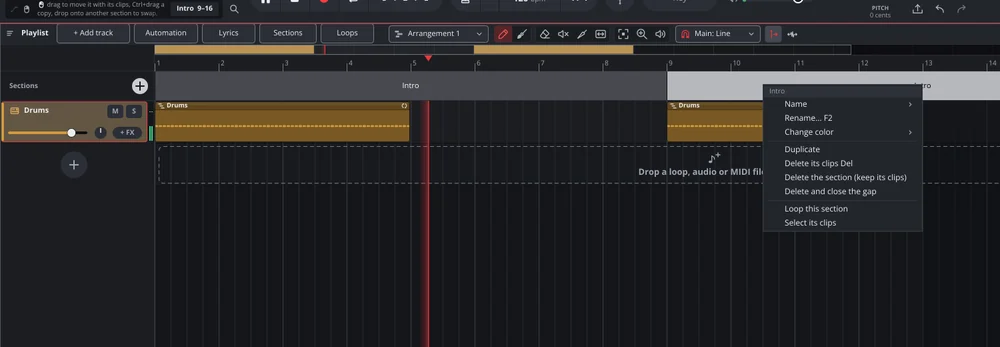
- Right-click a section for
Rename...,Duplicate,Loop this section,Select its clipsand the delete commands. - Right-click the lane for
Add a section at the end,Sections from markersandCreate scenes from sections(for the Clip-launch layout).
In the Pattern layout the Sections lane is a LYNX extra: switch it on in Options › LYNX extras....
See also Simple layout.