 LYNX SHARE
Start the session (the host)
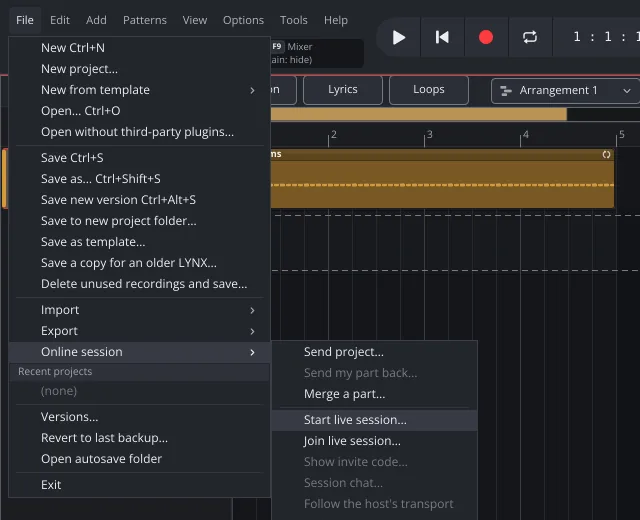
- Open the project you want to share.
- Choose
File › Online session › Start live session.... - Type your name. Under
Guests may edit, keepOnly their own channels, patterns, inserts and rows (recommended)or chooseEverything. - Click
Start.

Invite your friends
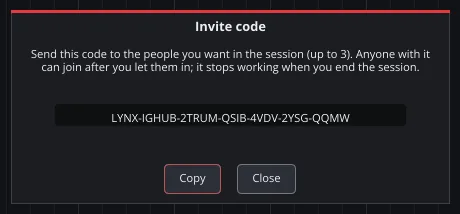
- LYNX SHARE shows the session's invite code. Click
Copy. - Send the code to up to 3 people, by chat or e-mail.
File › Online session › Show invite code...shows it again later.
Join (the guest)
- Choose
File › Online session › Join live session.... - Type your name, paste the invite code and click
Join. - Wait for the host to let you in. The host's project opens.
Let them in (the host)
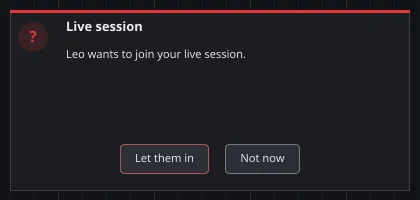
When someone asks to join, click Let them in, or Not now.
Work together

- Every change anyone makes reaches everyone. Each guest gets a colour and their own tracks and mixer inserts.
File › Online session › Session chat...opens the chat.- The host chooses
File › Online session › End live sessionto end it. The project stays on the host's computer, and guests keep what the start window said: their own part or a full copy.
Good to know
- Up to 4 people take part, you included.
- Everything is end-to-end encrypted with the invite code. The LYNX SHARE relay only passes it on.
- No internet?
File › Online session › Send project...makes a package file instead. See Online sessions.