 LYNX SHARE
Open the .als
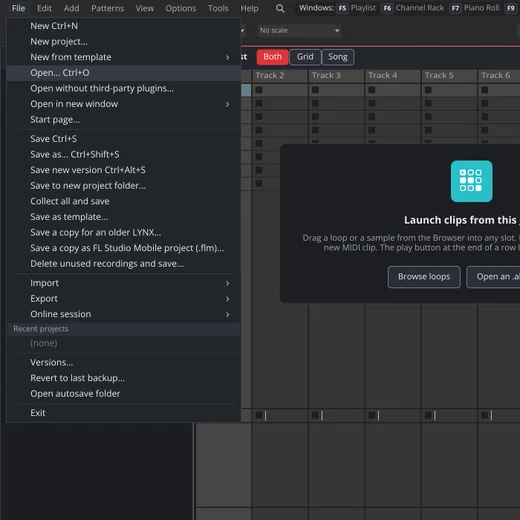
- Choose
File › Open...(Ctrl+O) and pick the set's.alsfile, inside its project folder. - LYNX SHARE opens it in the Clip-launch layout. Ableton Live itself is not needed, and the
.alsis never changed.
What comes over
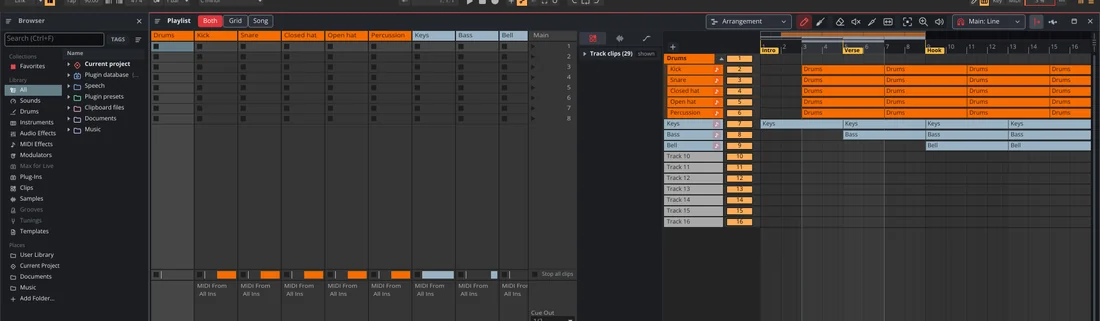
- MIDI, audio, group and return tracks, the tempo, the time signature, locators and the loop.
- The arrangement, and session clips and scenes into the clip grid, with their launch settings.
- The mixer: volume, pan, mute, solo, sends and their automation. Live's colours stay.
- VST2 and VST3 plugins with their state, when the same plugin is installed.
Play and look at the devices
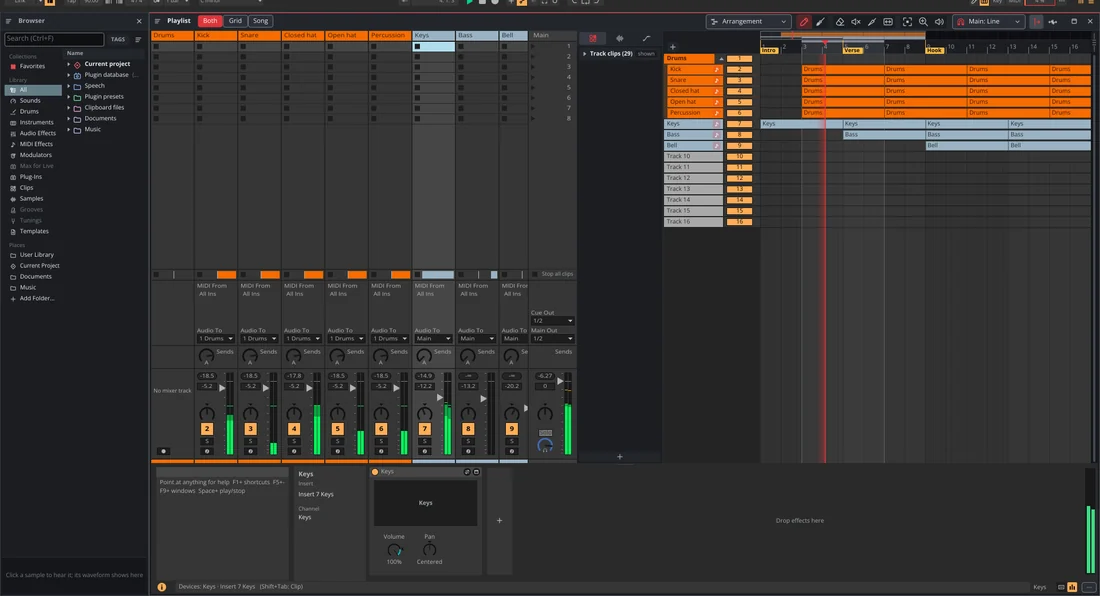
- Press Play to hear the arrangement, or launch clips and scenes in the grid.
- Click a track's title in the grid, then
View › Device view(Ctrl+Alt+4) shows its devices.
Import report and export
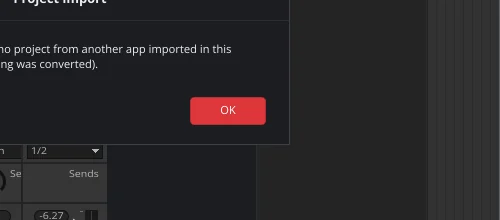
- When something had to change, a report opens with the set.
Help › Last project import reportshows it again: what was approximated or left out. File › Export › Ableton Live set (.als)...writes a set for Live 12 or Live 11.
See also Coming from Ableton Live and File formats.