 LYNX SHARE
The grid and the arrangement
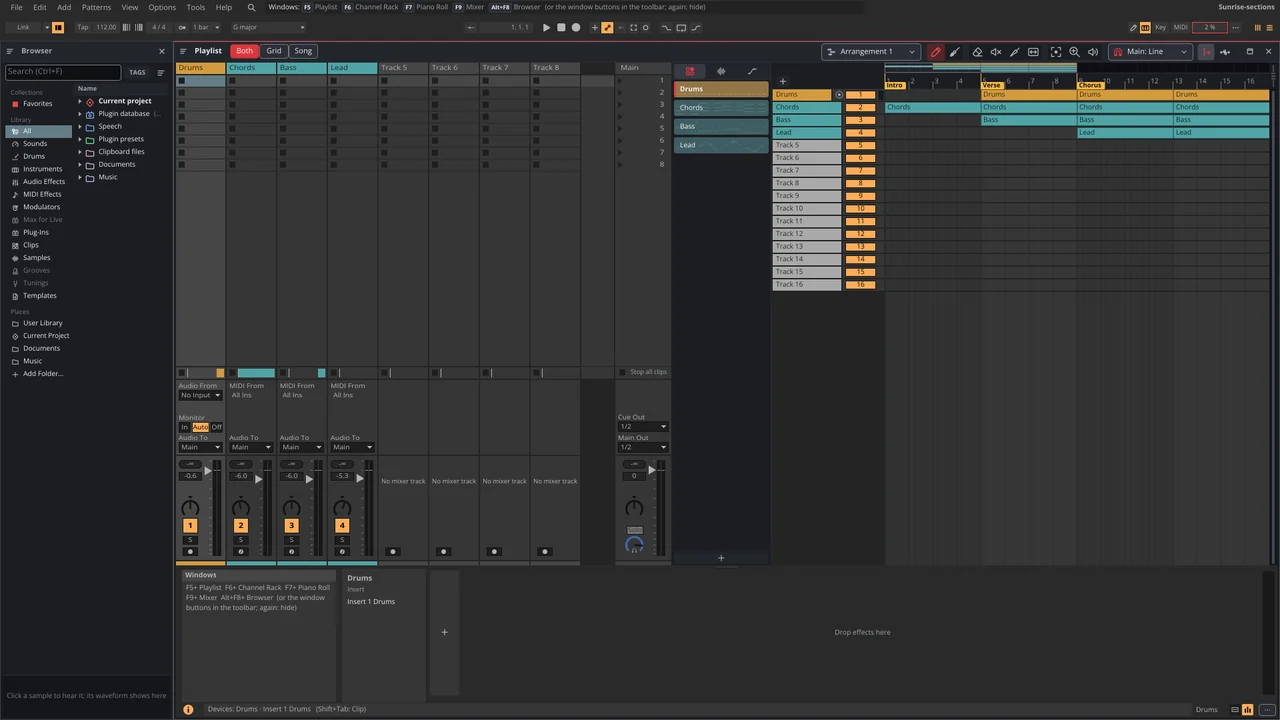
- On the welcome card, click
Ableton Live or Bitwig, or chooseView › Layout style › Clip-launch layout. - The Playlist's tracks are the columns of the clip grid; each row is a scene. The arrangement sits on the right.
- Here we open LYNX's demo song. Its arrangement has three sections: Intro, Verse and Hook.
Scenes from sections
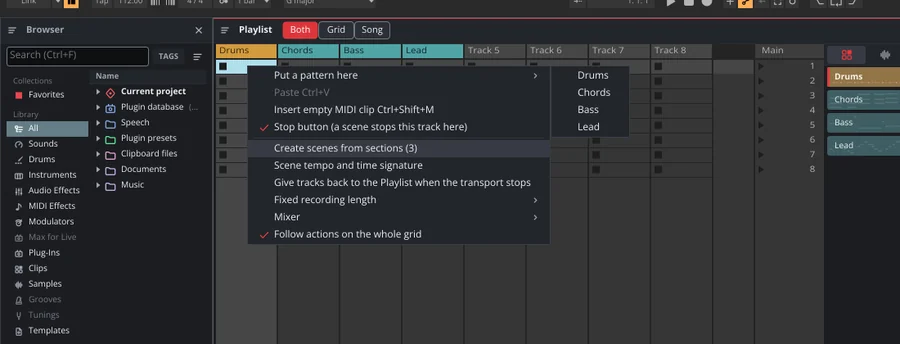
- Right-click a slot and choose
Create scenes from sections. - Each section becomes a scene, named and coloured after it, with every track's clip of that section.
Launch scenes and clips

- Click the launch button at the end of a scene's row: its clips start together.
- Launch another scene. It waits for the next bar, then takes over.
- Click one clip's launch button to start just that track's clip.
- Stop all clips with the stop button of the Main column, or press Stop.
Devices and the arrangement

View › Device view(Ctrl+Alt+4) shows the selected track's instrument and effects under the grid.Ctrl+Alt+3shows the Clip view.Songshows only the arrangement,Gridonly the clip grid,Boththe two side by side.- A track that launched a clip leaves the arrangement until you click
Back to Playlist.
See also Coming from Ableton Live and Layouts.