 LYNX SHARE
Layouts
Switch between the three workflows: Pattern (the FL Studio workflow), Clip-launch and Simple.
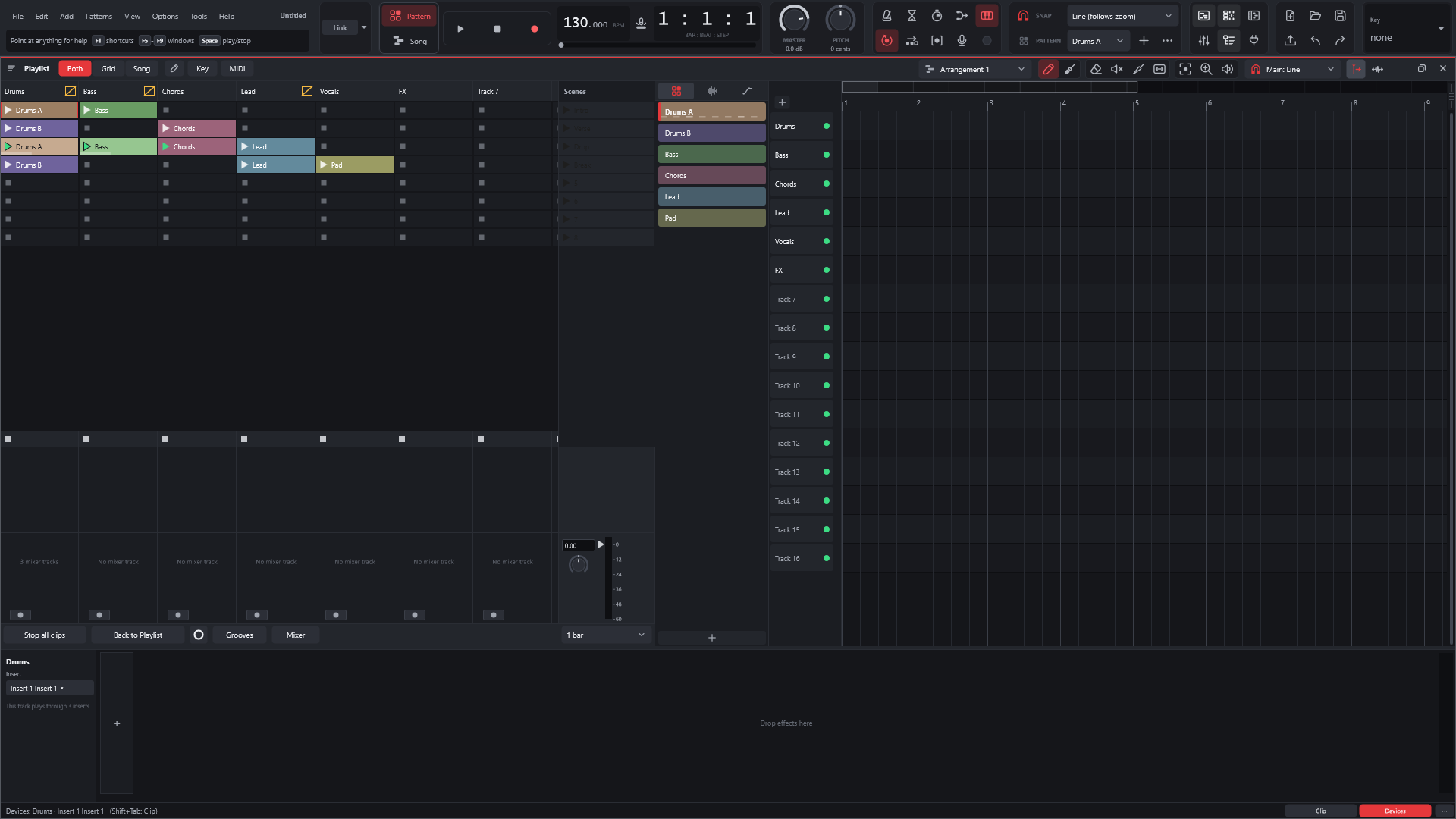
View › Layout style has three entries: Pattern workflow (default), Clip-launch workflow and Simple workflow. The same choice is in Options › General settings, under Workflow. The choice is kept when you close the program.
The Pattern workflow, the default, works the way FL Studio does: the Channel rack, patterns, the Piano roll, the Playlist and the Mixer. The Clip-launch workflow, in the style of Ableton Live, adds a clip grid with scenes beside the Playlist, a Session mixer and the clip and device views; patterns and the Channel rack stay available. The Simple workflow mixes BandLab's approachable one-window style with FL Studio Mobile's way of working: tracks and a timeline, loops, pads and quick recording. Switching moves the windows only: the project stays the same.
Launch clips in the grid
- Choose
View › Layout style › Clip-launch workflow. The clip grid appears next to the Playlist. - Right-click an empty slot, choose
Put a pattern hereand pick a pattern. Double-clicking an empty slot puts the current pattern there. - Click the triangle at the left of the clip to launch it. If the transport is stopped, it starts.
- Click the triangle of a scene, in the
Scenescolumn, to launch every clip in that row. - Click
Stop all clipsto stop them. - Click
Back to Playlistto let the tracks play their Playlist clips again.
What changes on screen
- The clip grid is shown beside the Playlist. Playlist tracks are the columns and scenes are the rows.
- The Playlist's title bar gets a
Both,Grid,Songswitch.Gridshows only the grid,Songonly the Playlist. - The first time, the Channel rack is hidden.
F6or its toolbar button shows it. - The Playlist's automation lanes are switched on.
- The window layout is stored per style, so each style comes back the way you left it.
- Under the grid, the
Mixerbutton shows or hides the Session mixer, as in Ableton Live:In/Out(Audio From,Monitor,Audio To),Sends,Track Delay, and each track's volume with its activator, solo, arm button and meter, plus theMainstrip. Grooves, under the grid, shows the Groove Pool.Commit groovewrites a groove into the notes of a MIDI clip.- The
MIDIandKeybuttons start MIDI Map Mode and Key Map Mode. See MIDI controllers.
The grid
A launched clip does not start at once. It waits for the next launch quantisation point, and its triangle blinks until then. The box at the bottom of the grid sets the global launch quantisation, which every clip set to Global uses. A stop waits in the same way.
Right-click a clip for its settings.
| Setting | What it does |
|---|---|
Launch quantisation | When this clip starts: Global, None, 8 bars down to 1/32 |
Launch mode | Trigger, Gate, Toggle or Repeat |
Legato (keep the position) | The clip takes over the play position of the clip that played before on that track |
Loop | On: the clip repeats. Off: it plays once, then the track stops |
Follow action | What happens after the clip: two actions with a chance each, and the time after which they act |
Delete | Empties the slot |
Right-click an empty slot for Stop button (a scene stops this track here). Clicking the square at the left of an empty slot stops that track. Right-click a scene for Insert scene, Add scene below, Delete scene, Rename scene... and the scene's tempo.
Clips can be cut, copied, pasted and duplicated (Ctrl+D) from their menu, and dragged between slots and to or from the Playlist. A pattern or a sample dragged from the Browser, or audio files dropped from outside, fill the slot they land on. A scene's menu also has Duplicate and Capture and insert scene, which puts the clips playing now into a new scene. View › Scene tempo and time signature shows a tempo and time signature for each scene.
The slot menu also has two options for the whole grid: Give tracks back to the Playlist when the transport stops and Follow actions on the whole grid.
| Command | Key | What it does |
|---|---|---|
| Move | Arrow keys | Selects another slot |
| Launch clip | Enter | Launches the selected clip |
| Launch scene | Ctrl+Enter | Launches the selected scene |
| Delete clip | Del | Empties the selected slot |
| Draw Mode | B | A drag in an automation lane draws steps as wide as the grid, or freehand with snap off or Alt held, as in Ableton Live. Also in Options |
Ableton Live sets
When you open a Live set, its Session clips and scenes go into the clip grid, with their launch settings. File › Export › Ableton Live set (.als) writes the grid back as Session clips. Options › General settings has Session clips of Live sets, where Playlist, after the arrangement places them on the Playlist instead.
The Simple workflow
View › Layout style › Simple workflow is one window with the tracks and the timeline, in the style of BandLab and FL Studio Mobile, and it suits a first song. View › Track dock shows a dock under the timeline for the selected track, with the Effects, Instrument, Keyboard and Editor tabs. In this workflow, the Help menu has First-song tour and Welcome screen..., which offers a seven-step first song, a demo song or an empty project. See Simple layout.
Lyrics and notes and Reference match... in the View menu, and Clean voice in a Mixer insert's menu, are there in every layout. In the Simple workflow, Clean voice is in a track's menu too.
Switch back
Choose View › Layout style › Pattern workflow (default). The window layout you had in the Pattern workflow comes back, and the automation lanes return to the setting they had before. The clips in the grid stay in the project.
Good to know
- A track that launched a clip stays silent in the Playlist until you press
Back to Playlist. The optionGive tracks back to the Playlist when the transport stopsdoes it for you at every stop. - The new keys of the grid (
B,Q,Ctrl+M,Ctrl+Kand others) act this way in the Clip-launch workflow only. In the Pattern workflow they keep FL Studio's meaning. - A scene in 6/8 plays a bar of three beats, because the meter counts quarter notes.
- Follow actions exist for clips, not for scenes.
- Automation lanes switched by hand while in the Clip-launch workflow are not kept when you go back.
- With the Pattern workflow selected, nothing of the grid is loaded.
Related
The third entry is one window for a first song. See Simple layout.