 LYNX SHARE
Importing projects
Open FL Studio, Ableton Live, FL Studio Mobile and MIDI files in LYNX SHARE.
File › Open... (Ctrl+O) opens LYNX SHARE's own .lynx projects and also .flp, .als, .flm and .mid files. A project from another program is an import: it becomes a new, unsaved LYNX SHARE project, and the original file is never written.
Open a project from another program
- Choose
File › Open...and pick the.flp,.als,.flmor.midfile. - Wait while LYNX SHARE looks for the project's plugins and samples.
- If something was not found, the
Missing fileswindow opens. Point it to your samples, or close it. - The title bar now shows where the project came from, for example "(imported from FL Studio)".
- Choose
File › Save. LYNX SHARE asks where to write a.lynxfile.
What comes over
| Format | Converted | Not converted |
|---|---|---|
.flp (FL Studio) | Channels, samples, patterns, slide and porta notes, every arrangement, markers, time-signature changes, automation, controller links, the Mixer with routing, sidechains, track EQ and native effects | FLEX packs are encrypted and never opened. A FLEX channel gets a synth patch chosen by its preset name |
.als (Live 11 and 12) | MIDI, audio, group and return tracks, tempo, time signature, locators, the loop, volume, pan, mute, solo and sends with their automation, Session clips and scenes, warp markers, racks and Drum Racks, and many of Live's own devices (EQ Eight, Compressor, Glue Compressor, Reverb, Delay, Auto Filter, Saturator, Utility, Simpler, Drift and more) as LYNX SHARE's own | Live's devices with no LYNX SHARE equivalent (Hybrid Reverb, Grain Delay, Amp, Roar, FM Operator patches and others) are dropped and listed. MIDI Effect Racks are not converted |
.flm (FL Studio Mobile) | Tempo, time signature, one mixer insert per channel, one Playlist track per lane, patterns, audio clips with offset and pitch, drum kits, DW Sampler and .dwp programs, the Slicer, MiniSynth, Transistor Bass, 3x Osc, GMSynth and SuperSaw, the effects, the automation and the chord sets | Other FLM generators play the built-in synth |
.mid | Notes, time signatures and every tempo change | A MIDI file carries no sounds: channels get the LYNX SHARE synth or a MIDI Out channel |
Third-party VST2, VST3 and CLAP plugins in an .flp, and VST2 and VST3 plugins in an .als, load with their saved state if the same plugin is installed on your computer.
FL Studio's own plugins
FL Studio's generators and effects are not loaded. LYNX SHARE reads their saved settings and plays them on engines it recreated. Each engine has a quality level, from Exact (bit-identical to the original on every state tested) down to Placeholder (the settings are kept, but the plugin is silent or passes audio through). The levels are explained in Coming from FL Studio.
Opening an .flp works without FL Studio installed. Some engines need waves, samples or impulses that are read from your own FL Studio installation at run time.
An .flp that uses FL Studio's "FL Studio Mobile Rack" (FL Studio Mobile's own "Save as FLP" writes one per instrument track) plays its instrument and effects on the same engines as an .flm, and the "FL Studio Mobile Rack FX" effect too. A rack with a drum kit or several instruments still plays the built-in synth.
FL Studio Mobile factory sounds
The factory sounds an .flm uses (drum kits, DirectWave programs, SoundFonts, the GMSynth waves) belong to FL Studio Mobile and are never shipped with LYNX SHARE. LYNX SHARE looks for them in your own copy of the app's Resources folder: add it under Settings › Files › FL Studio Mobile resources (picking the folder above it, or an FL Studio installation folder, also works). FL Studio's install holds only part of them, and is searched after your folders. Files that are still missing are listed in the Missing files window.
Missing samples
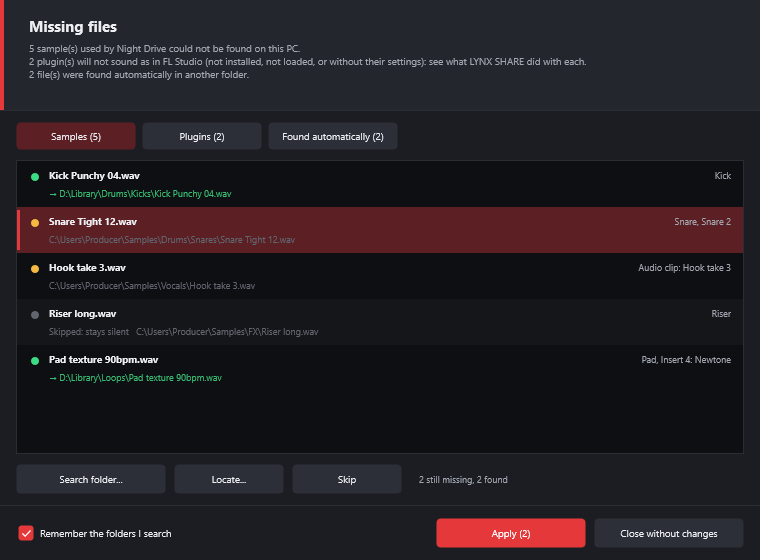
The Samples tab lists every sample that was not found, with its saved path and what uses it.
| Command | What it does |
|---|---|
Search folder... | Searches a folder and its sub-folders for all missing samples |
Locate... | Asks where one sample is. Others found in the same folder are picked up too |
Skip | Leaves the sample out. Its channel stays silent |
Apply uses the files that were found.
The Found automatically tab lists files LYNX SHARE found in another folder by itself. Save the project to keep the new places.
Missing plugins
LYNX SHARE looks for each third-party plugin by its identifier, then by its file, then by its name. A project saved with the VST2 opens with the VST3 of the same product and the other way round, but then with default settings.
When an effect is not installed, a LYNX SHARE effect with the same role takes the slot: a reverb for a reverb, a compressor for a compressor.
- The slot shows the original plugin's name with a LYNX SHARE badge.
- Where the saved state can be read, the settings are translated. Otherwise the substitute starts from a default preset. The table of products, their substitutes and what is translated for each is in PLUGIN_FALLBACK.md.
- Automation of the original's parameters is kept but does not drive the substitute.
- The original plugin's reference and state stay in the project. Once the plugin is installed, the project opens with it again.
Bypass all LYNX SHARE substitutes of this project, in a substitute slot's right-click menu, switches them all off at once.
The switch is Substitute missing plugins with LYNX SHARE equivalents in Options › General settings..., on by default. With it off, the slot of a missing effect is left out of the mixer. A missing instrument is not substituted. It becomes a built-in synth with a preset chosen by the channel name.
To get the real plugin back, install it, choose Options › Scan for plugins, then open the project again.
MIDI files

File › Open... makes a new project from a MIDI file. File › Import › MIDI file... opens the Import MIDI data window first, where you choose what to bring in.
| Setting | What it does |
|---|---|
Which tracks to import? | All tracks, or one |
Which channels to import? | Click a MIDI channel to leave it out. Right-click keeps only that one |
Channel type | LYNX SHARE synth or MIDI Out |
Start new project | Starts a blank project. Off: adds to the open one |
Create one channel per track | Off: one channel per MIDI channel |
Set mixer tracks for new channels | Routes the new channels to consecutive mixer inserts |
Import time signatures | The file's time signature becomes the project's |
Ctrl+M in the Piano roll imports a MIDI file into the current channel.
Good to know
Help › Missing files...opens the window again later.Help › Last FL Studio import reportlists what was approximated, left out or not installed.- Session clips of a Live set go into the clip grid of the Clip-launch layout.
Session clips of Live setsinOptions › General settings...places them on the Playlist instead.