 LYNX SHARE
Audio setup
Choose the audio driver, device, buffer size and sample rate.
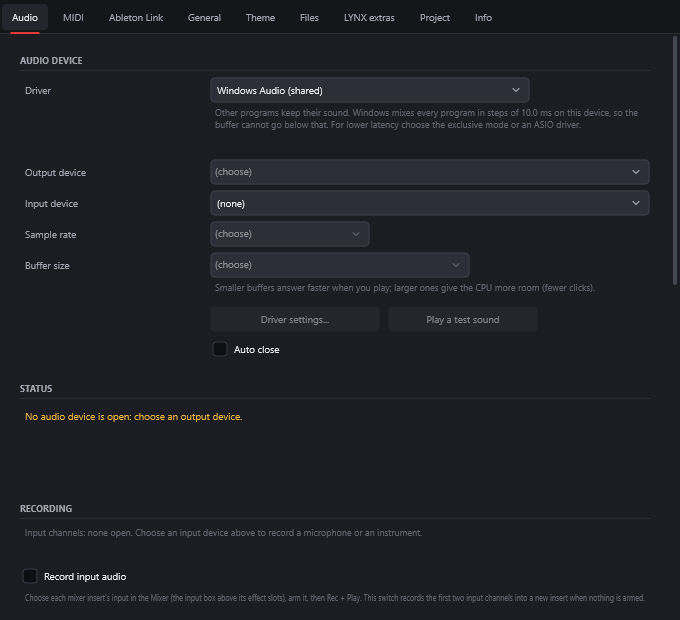
The Audio page of the Settings window chooses where the sound goes and where recordings come from. Open it with Options › Audio settings.... The setup wizard (Options › Setup wizard (language, audio, plugin folders)...) also tests the audio output.
Get sound out
- Open
Options › Audio settings.... - Pick a
Driver. The note under the box says what that driver is good for. - Pick an
Output device. - Click
Play a test sound. - Read the
Statussection. It shows the driver that is running, the sample rate and the output latency, orNo audio device is open: choose an output device.
Drivers
The Driver box lists the driver types of your system.
| System | Driver | What it does |
|---|---|---|
| Windows | Windows Audio (shared) | Other programs keep their sound. Windows mixes all programs in fixed steps, so the buffer cannot go below that step |
| Windows | Windows Audio (shared, low-latency period) | Shared, but asks Windows for a shorter mixing period. Only some drivers support it |
| Windows | Windows Audio (exclusive, lowest latency) | LYNX SHARE uses the device alone. Other programs go silent while it plays |
| Windows | DirectSound (legacy) | Old Windows audio path with high latency. For when the others fail |
| Windows | ASIO | Low-latency drivers. A manufacturer's ASIO driver works with its own device |
| Windows | LYNX ASIO (built in) | LYNX SHARE's own ASIO driver, for any device, playback and recording. Driver settings... chooses shared or exclusive mode and the devices |
| macOS | Core Audio | The system's own audio, shared with other programs |
| Linux | PipeWire (native) | LYNX SHARE talks to PipeWire directly. System default follows the output chosen in the system's sound settings |
| Linux | JACK / PipeWire | For a running JACK server, or PipeWire with pipewire-jack |
| Linux | ALSA | Talks to the sound card. default or pipewire share the device, a hw: device takes the card for LYNX SHARE alone |
On Linux the first start opens the first of PipeWire, JACK and ALSA that has devices. A saved choice is kept.
The settings on the page
| Setting | What it does |
|---|---|
Driver | The driver type, from the table above |
Output device | Where the Master plays |
Input device | The source for audio recording and for Mixer insert inputs. (none) by default |
Sample rate | The rates the device offers |
Buffer size | The sizes the device offers, each with its latency in milliseconds. Smaller buffers answer faster when you play. Larger ones give the CPU more room, with fewer clicks |
Driver settings... | Opens the driver's own window (ASIO drivers) |
Play a test sound | Plays a test sound through the output device |
Record input audio | Records the first two input channels into a new insert when no insert is armed |
File format | Recordings are WAV 24-bit or WAV 32-bit float, at the device's sample rate |
Measure the round trip | Plays 8 clicks from the Ping output to the Ping input through a cable or loopback, and measures the delay so takes land where you played them |
Fine adjust (samples) | Moves every new take. Positive is earlier on the Playlist |
Metronome track | The Mixer track the metronome plays through. --- is the Master. The click is never in an export |
Play truncated notes on transport | Plays notes that cross the start position |
Reset plugins on transport | Clears the effects' tails when playback starts or jumps |
When there is no sound
- Look at
Statusfirst. If no device is open, choose an output device. - Try another driver. On Windows,
Windows Audio (shared)lets other programs keep their sound, andDirectSound (legacy)is there for when the others fail. - Check the Master fader in the Mixer and the
MASTERknob in the toolbar. - In Pattern mode only the current pattern plays. If it is empty you hear nothing. Press
Lfor Song mode. - On Linux, if the sound breaks up,
Statusshows whether the audio thread got real-time priority. Troubleshooting has the fix.
Good to know
- ASIO exists only on Windows.
- With
Windows Audio (shared)the smallest buffer is the system's mixing step. The note under theDriverbox gives the figure for your device. For lower latency use the exclusive mode or an ASIO driver. - With PipeWire the buffer goes from 32 to 2048 samples and the sample rate from 44.1 to 192 kHz. If PipeWire keeps its own rate, it resamples LYNX SHARE's stream.
- With PipeWire, when a named device is unplugged LYNX SHARE falls back to
System defaultand keeps the buffer size. Statusalso shows the audio CPU load and counts dropouts (buffer underruns).- You can list the drivers and devices without opening the window. See
--devicesin Command line.