 LYNX SHARE
The Channel rack
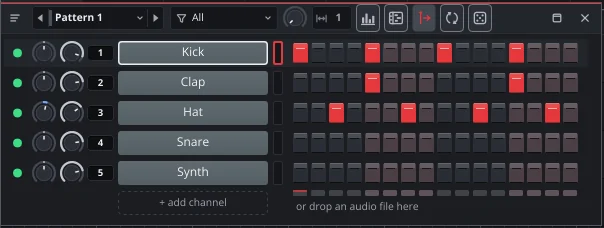
- On the welcome card, click
FL Studio, or chooseView › Layout style › Pattern layout (default). The Channel rack (F6) shows the starter channels: Kick, Clap, Hat, Snare and Synth. - Each row is a sound and each square is a step (a 16th note). Click a square to add a hit, click it again to remove it.
- A kick on steps 1, 5, 9 and 13, a clap on 5 and 13 and hats in between make a basic beat.
- Press Play (or the space bar). In Pattern mode the pattern loops.
The Piano roll
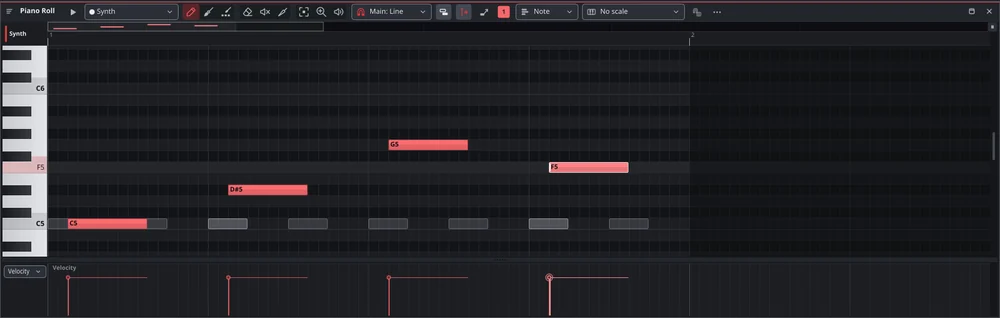
- Press
F7to open the Piano roll of the selected channel. - Each row is a key of the keyboard on the left. Click in the grid to draw a note; drag its end to make it longer.
- Right-click a note to delete it.
The Playlist
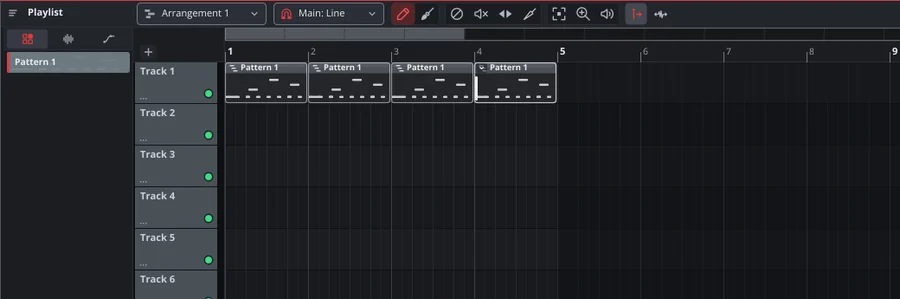
- Press
F5for the Playlist. It arranges your patterns into a song. - Click on a track to place the current pattern. Place it several times to make it play for longer.
- Switch the transport from
PatterntoSong(or pressL) and press Play to hear the Playlist.
The Mixer
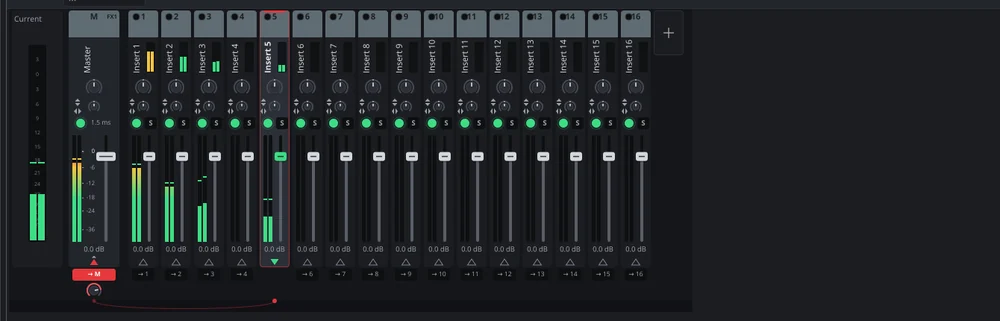
- Press
F9for the Mixer. - Each channel plays into a Mixer track. Drag a fader to set its level, and add effects in the track's slots.
- The Master track on the left is what you hear and what you export.
Good to know
F5,F6,F7andF9show or hide the four windows, as in FL Studio.F8opens the Plugin picker.- The same project opens in the Simple and Clip-launch layouts too: see One project, three layouts.
See also Coming from FL Studio and Keyboard shortcuts.