 LYNX SHARE
Open the Tracker
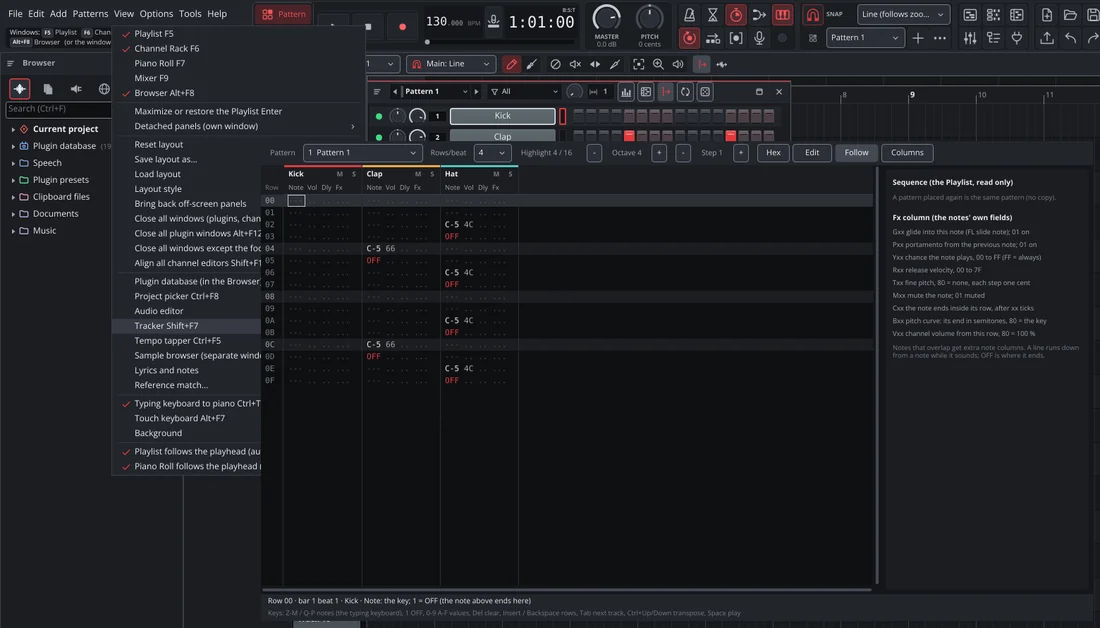
- Choose
View › Tracker(Shift+F7). In the Clip-launch layout, right-click a clip and chooseEdit in tracker; in the Simple layout it is a tab of the dock. - Time runs down the rows, one row per step. Each channel with notes, and the selected one, gets a column:
Note,Vol,DlyandFx.
Type notes
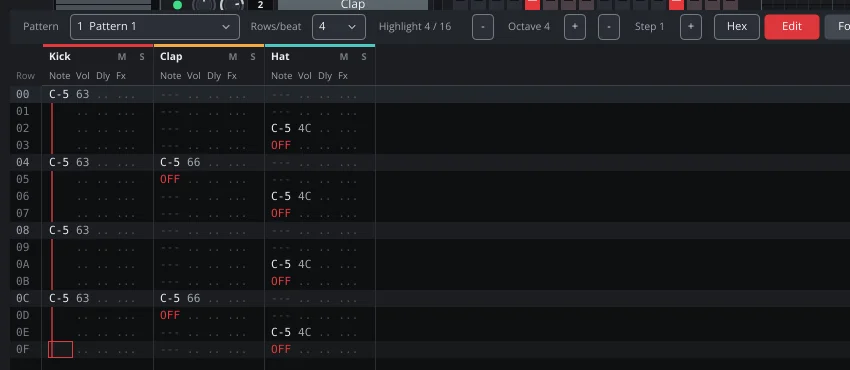
- Press
Ctrl+E, or clickEdit, so the typing keys write notes at the cursor. With Edit off they only play. - The keys
ZtoMandQtoPplay and write notes, as on FL Studio's typing keyboard.Octavesets the octave. - After each note the cursor moves down by
Steprows. Move with the arrow keys;Tabgoes to the next channel. 1writes a note off,Deleteclears a cell,InsertandBackspaceshift the rows below. Hex digits fill theVol,DlyandFxvalues.
Play and edit
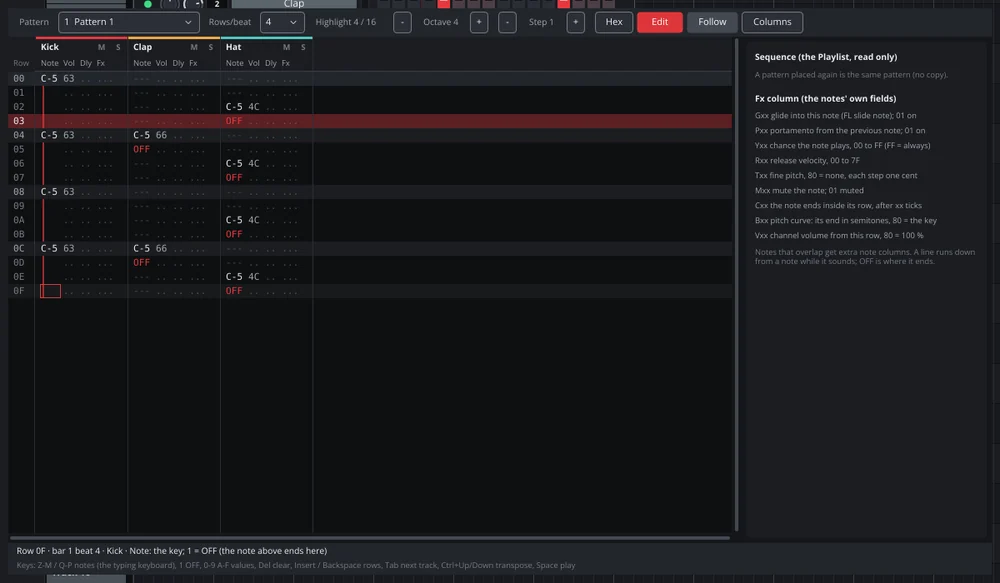
- Press Play. With
Followon, the rows scroll with the playback. Ctrl+UpandCtrl+Downtranspose the selection, or the note at the cursor, by a semitone; addShiftfor an octave.- The Tracker, the Channel rack and the Piano roll edit the same pattern, so every change shows in all three.
See also Keyboard shortcuts.