 LYNX SHARE
Open the Export window

- Choose
File › Export › MP3 file..., or pressCtrl+Shift+R. File › Export › Wave file...opens the same window with WAV chosen;Ctrl+Ropens it with the format you used last.
Format and quality
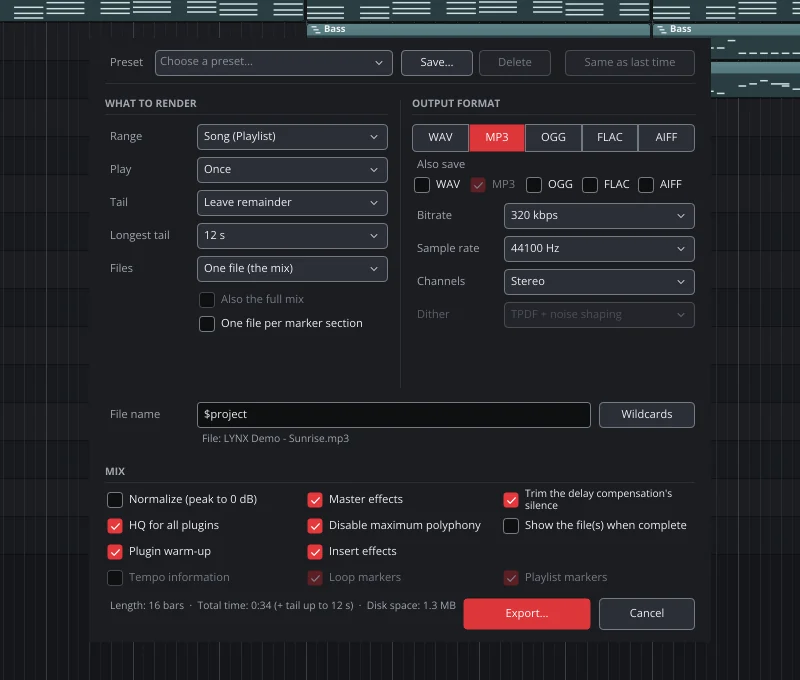
- The format row shows the one you picked. WAV keeps every detail (for mastering or another program); MP3 makes a small file to share.
- For MP3 pick the
Bitrate: 320 kbps sounds best. - In
What to renderchoose the whole song, the pattern, or the time you selected. Also savewrites other formats from the same render, for example WAV and MP3 at once.
Export
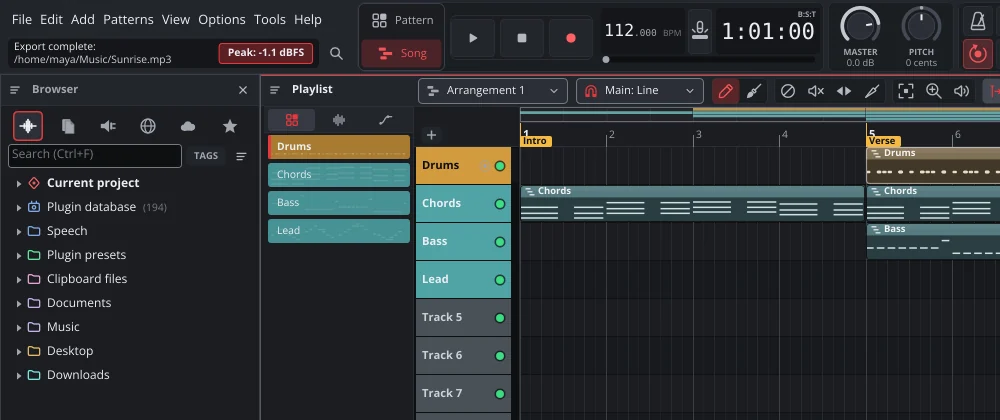
- Click
Export...and choose where to save. LYNX renders faster than real time. - When it is done, the hint bar shows where the file is.
See also Exporting.