 LYNX SHARE
Browser
Find and preview samples, presets and plugins, and drag them into the project.
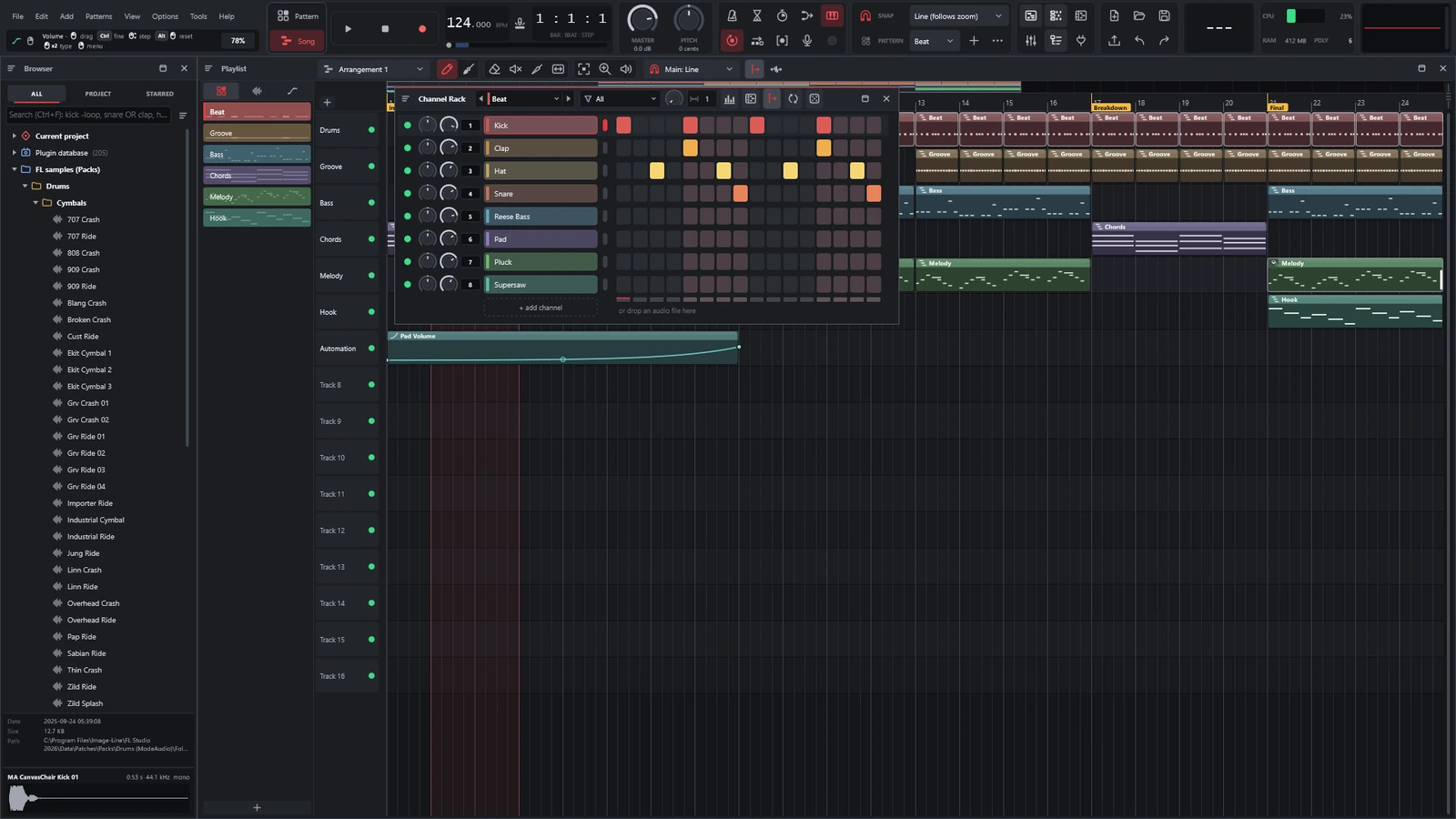
The Browser lists your sample folders, the contents of the current project and the plugins LYNX SHARE knows. Press Alt+F8 to show or hide it. F8 alone opens the plugin picker, a separate full-screen view of every instrument and effect.
Load a sample into the project
- Press
Alt+F8to show the Browser. - In the
ALLtab, click a folder to open it. - Click an audio file to hear it.
UpandDownstep through the files and preview each one. - Double-click the file to get a new channel with the sample in the Channel rack.
- Or drag the file onto the Playlist to get an audio clip.
Tabs
| Tab | Shows |
|---|---|
| ALL | The current project, the Plugin database and every sample folder |
| PROJECT | Only what the current project uses: patterns, effects, generators, automation, audio files |
| STARRED | The files and folders you starred (right-click, then Starred) |
Browse and preview
- Click a folder to open or close it. Right-click it for a menu (collapse all, show in the file manager).
- Click an audio file to hear it. The preview strip under the list shows its waveform. Click the strip to hear the file again, or drag from it as if it were the file.
- The panel above the preview strip shows the selected file's date, size and path.
Use a sample
| Action | What it does |
|---|---|
| Double-click | New channel with the sample |
| Drag to the Channel rack | New channel, or drop on a row to load it there |
| Drag to the Playlist | Audio clip |
Enter | Loads the file into the selected channel |
Shift+Up / Shift+Down | Steps to the previous or next file and loads it into the selected channel |
The last one lets you audition different samples in place while the pattern plays.
Other file types
- Project: double-click opens it.
- MIDI file: double-click opens it as a project.
- SoundFont or SFZ: click previews it, double-click makes a LYNX Soundfont channel (or loads it into the selected one).
- Mixer preset: double-click loads it onto the selected Mixer inserts, or drag it onto an insert.
- Effect preset: drag it onto a Mixer insert.
Plugin database
The Plugin database entry lists LYNX SHARE's built-in instruments and effects and the installed plugins. Shift+F8 jumps to it.
- Double-click an instrument to add it as a new channel, or drag it onto the Channel rack.
- Double-click an effect to add it to the selected Mixer insert, or drag it onto an insert or an effect slot.
F2renames the selected plugin.- Right-click a plugin and choose
Move to folderto sort plugins into folders. The Mixer's slot menu and the Channel rack's add menu then list each top folder.
The PROJECT tab
Patterns listed here can be clicked to make them the current pattern, double-clicked to open them in the Piano roll, or dragged into the Playlist. The current project section also lists the undo history: click a step to go back to it.
Search
Press Ctrl+F to put the cursor in the search box. It searches the selected folder (or every folder) and below. In the PROJECT tab it searches the project's items.
All words must match. The box also takes OR, a minus sign to exclude a word, and * wildcards:
kick -loop
snare OR clap
hat*.wav
The folders are indexed in the background. Refresh search index in the Browser's menu rebuilds the index.
Your own folders
Use Add folder in the Browser's folder list to add a folder of samples, projects or SoundFonts. Options › File settings (search folders) has the search folders.
Keys
The arrow keys, Enter and F2 need the Browser to have focus.
| Command | Key | What it does |
|---|---|---|
| Show Browser | Alt+F8 | Shows or hides the Browser |
| Plugin picker | F8 | Opens the full-screen plugin picker |
| Plugin database | Shift+F8 | Jumps to the Plugin database entry |
| Search | Ctrl+F | Puts the cursor in the search box |
| Step and preview | Up / Down | Selects the previous or next file and plays it |
| Close folder | Left | Closes a folder or goes to its parent |
| Open folder | Right | Opens a folder |
| Load | Enter | Loads the file into the selected channel |
| Step and load | Shift+Up / Shift+Down | Steps to the previous or next file and loads it into the selected channel |
| Rename plugin | F2 | Renames the selected plugin in the Plugin database |
Good to know
- Removing a folder from the list does not delete it from the disk.
F8andAlt+F8are different things.F8is the plugin picker,Alt+F8is the Browser.- Search results come from an index built in the background.
Refresh search indexin the Browser's menu rebuilds it. Enterloads the file into the selected channel. Double-click makes a new channel.