 LYNX SHARE
Coming from Ableton Live
The optional Clip-launch layout, opening and exporting .als sets, and warp modes.
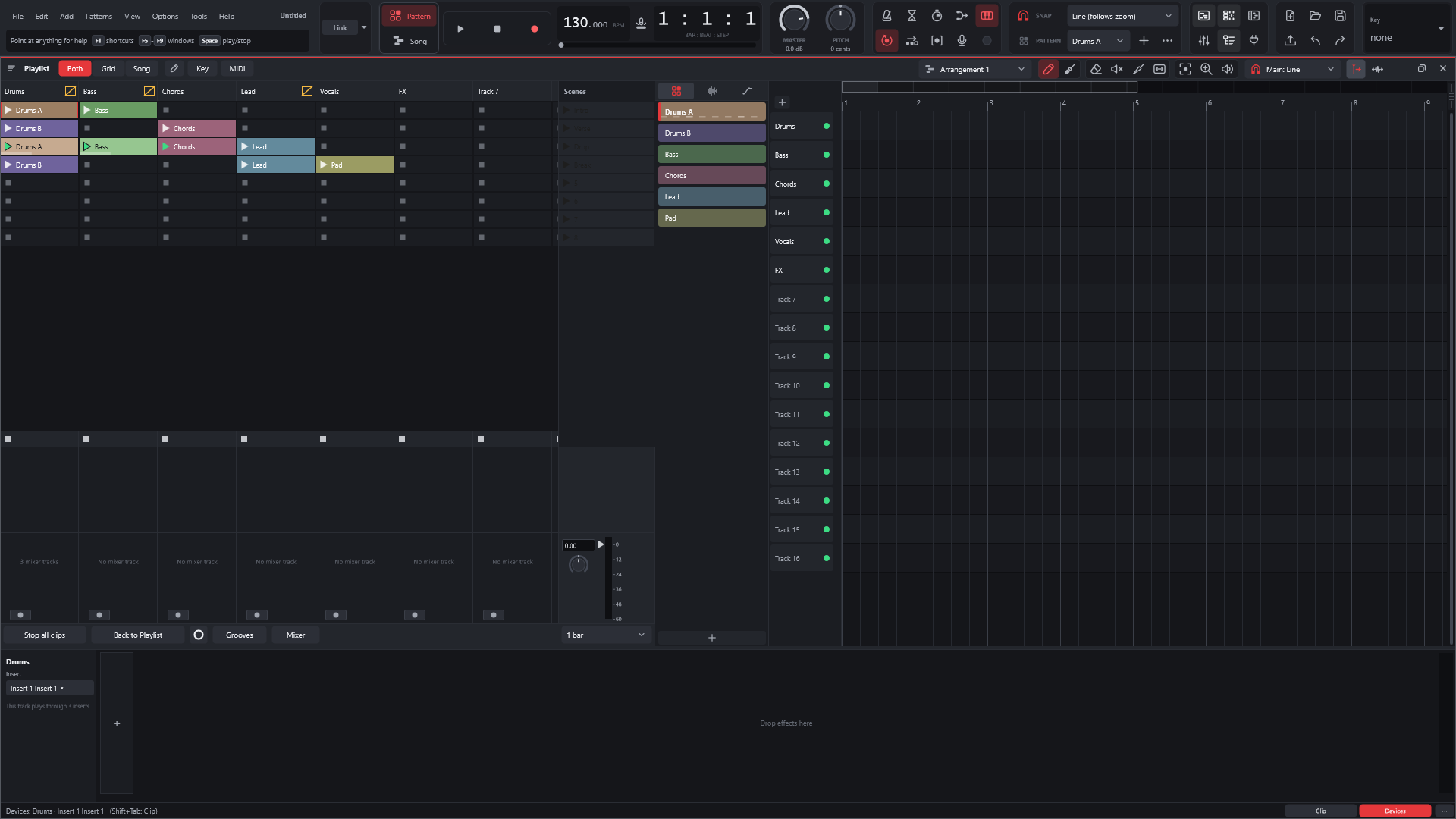
LYNX SHARE starts in the Pattern workflow: a Channel rack, patterns and a Playlist. The Clip-launch workflow is optional and adds a clip grid with scenes beside the Playlist. LYNX SHARE reads and writes .als sets. It is not affiliated with Ableton.
Open a Live set
- Choose
File › Open...(Ctrl+O) and pick the.als. Sets saved by Live 11 and Live 12 are read. - Choose
View › Layout style › Clip-launch workflowto work with the clip grid, where the set's Session clips and scenes go. - Use the
Grid / Both / Songswitch in the Playlist's title bar to show the grid, the Playlist, or both. - Choose
File › Save. It asks where to write a.lynxfile. The.alsis not changed.
View › Layout style › Pattern workflow (default) goes back. The same choice is in Options › General settings.... Patterns and the Channel rack stay available in both layouts.
What maps to what
| In Live | In LYNX SHARE |
|---|---|
| Session view | The clip grid of the Clip-launch workflow |
| Arrangement view | The Playlist |
| Tracks | Playlist tracks, which are the columns of the clip grid |
| Scenes | Scenes, the rows of the clip grid. A scene can set the tempo when launched |
| Launch quantisation | Global, None, 8 bars down to 1 bar, or a note value from 1/2 to 1/32, per clip if you want |
| Launch modes | Trigger, Gate, Toggle and Repeat |
| Follow actions | Action A and Action B with a chance for each |
| Clip stop buttons | An empty slot can have a stop button |
| Back to Arrangement | Back to Playlist |
| Warp modes | Beats, Tones, Texture and Complex in Channel settings › Time stretch |
| Simpler, Sampler and drum racks | LYNX SHARE samplers |
.als set | .lynx project file |
The clip grid
A slot holds a pattern clip or an audio clip.
- A track plays one clip at a time. A launched clip replaces the one playing.
- A launch waits for the next step of the launch quantisation.
Legatostarts the new clip at the position the replaced clip had reached.Loopis per clip.- Scenes can be inserted, deleted and renamed.
- A track that launched a clip stays silent in the Playlist until you press
Back to Playlist. An option gives tracks back when the transport stops.
Follow actions run after a number of bars or passes of the clip. The actions are No action, Stop, Play again, Previous, Next, First, Last, Any and Other. A switch turns follow actions on or off for the whole grid.
What is imported from a .als
- MIDI, audio, group and return tracks, tempo, time signature, locators, the loop, mixer settings (volume, pan, mute, solo, sends) and their automation.
- VST2 and VST3 plugins with their state, if the same plugin is installed. See Third-party plugins.
- Session clips and scenes, into the clip grid, with their launch mode, quantisation, legato, loop, follow actions and stop buttons. To place them on the Playlist instead, one section per scene, change
Session clips of Live setsinOptions › General settings.... - Warp markers.
Export a .als
- Choose
File › Export › Ableton Live set (.als).... - Under
Save for, pickLive 12orLive 11 (also opens in Live 12). - Under
Samples, copy them into the set's project folder or refer to them where they are. - Choose a folder. The set is saved as
<name> Project/<name>.als.
| Written | Not written |
|---|---|
| A MIDI track per channel, with its notes as MIDI clips | LYNX SHARE's own instruments and effects. Their tracks and notes are kept |
| Audio tracks with stretch, transpose, gain, fades and warp mode | Automation of effect parameters |
| Groups, returns and sends | Insert-to-insert routes |
| VST2 and VST3 plugins with their state | |
| Markers, and volume, pan and tempo automation | |
| The clip grid as Session clips and scenes, racks and Drum Racks |
A report after the export lists what was left out.
Good to know
- Many of Live's own devices come in as LYNX SHARE's own, with their settings and automation: EQ Eight, EQ Three, Channel EQ, Compressor, Glue Compressor, Multiband Dynamics, Limiter, Gate, Utility, Reverb, Delay, Echo, Auto Filter, Saturator, Overdrive, Chorus-Ensemble, Redux, Auto Pan, Drum Buss, Simpler, Drift and Operator (without FM). The others are dropped and listed in the import report.
- Instrument and Audio Effect Racks come in with their chains, zones and macros, and a Drum Rack becomes LYNX SHARE's Drum Rack. Live's MIDI Effect Racks are not converted yet and are listed in the import report.
- The import report lists what was left out.
- Live trims audio clips that overlap in an exported set.
- Warp markers from a Live set are kept on import and written back on export.