 LYNX SHARE
Online sessions
Work on one project with up to three other people, by package or live.
There are two ways to work on a project with other people, and both are under File › Online session. A package is a file you send to a friend, who sends a part back. It needs no network, account or server. A live session connects everyone over the internet through the LYNX SHARE relay, and every change reaches everyone. Up to 4 people take part in one project, you included.
Send a project to a friend
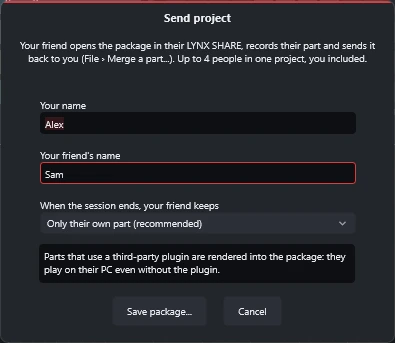
- Open the project and choose
File › Online session › Send project.... - Type your name and your friend's name.
- Choose what your friend keeps when the session ends:
Only their own part (recommended)orA full copy of the project. - Save the
.lynxpackfile. - Send the file any way you like: e-mail, a shared folder, a USB stick.
The package holds the project, every sample and recording it uses, and audio renders ("stand-ins") of the parts that use a third-party plugin. Your friend hears those parts without owning your plugins.
Record a part and send it back
The friend does this:
- Open the
.lynxpackwithFile › Open.... A summary shows who sent it and which mixer inserts and Playlist tracks are yours. ClickOpen. - Add your own channels, patterns and audio on your inserts and Playlist tracks. The host's material is left as it is.
- Choose
File › Online session › Send my part back...and send the new package to the host.
Each guest gets a colour, 20 mixer inserts and 16 Playlist tracks.
Merge a part
The host does this:
- Open the project that was sent.
- Choose
File › Online session › Merge a part...and pick the package your friend sent back. - The friend's channels, patterns, notes, clips and inserts are added in their colour. Nothing of yours is changed.
Merging is one undo step. A newer part from the same friend replaces the earlier one.
Start or join a live session
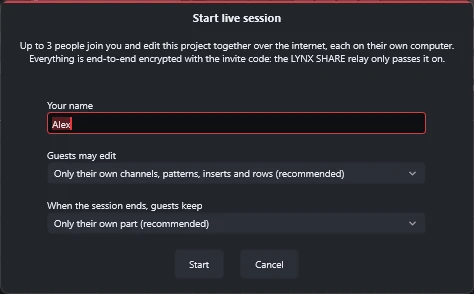
The host starts the session:
- Open the project and choose
File › Online session › Start live session.... - Type your name.
- Under
Guests may edit, chooseOnly their own channels, patterns, inserts and rows (recommended)orEverything. UnderWhen the session ends, guests keep, choose their own part or a full copy. - Click
Start, then copy the invite code and send it to up to 3 people. - When someone asks to join, click
Let them in.
A guest joins:
- Choose
File › Online session › Join live session.... - Type your name, paste the invite code and click
Join. - Wait for the host to let you in. The host's project opens.
During a live session
The File › Online session menu has these commands while a session runs:
| Command | What it does |
|---|---|
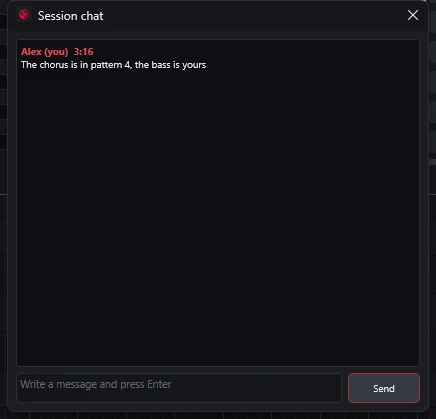
Session chat... | Opens the chat. The menu item shows the number of unread messages |
Follow the host's transport | For guests: play, stop and position follow the host |
People and permissions... | For the host: what each person may change, and what each keeps at the end |
Share plugins with guests... | For the host: which of your plugins the guests may use. The menu item shows how many are shared |
Show invite code... | For the host: shows the code again, with a Copy button |
End live session | For the host. Everyone leaves, and the code stops working |
Leave live session | For a guest. Your part of the project stays with you |
In People and permissions..., each person gets one of four roles: Their own channels, patterns, inserts and rows, Their own parts + tempo and project settings, Everything or Listen only (no edits). Turning a permission off never deletes anything.
Plugins the others do not have
A channel or insert whose plugin is not installed on your computer plays a stand-in, and shows an amber R badge in the Channel rack and the Mixer.
- In a package, the stand-ins are audio renders made when the package is saved. They follow clips you move, but not edits to the notes of a plugin you do not have. Ask its owner for a new package.
- In a live session, parts that use a plugin someone does not have are rendered by the person who has it and streamed to the others as audio.
Share your plugins with the guests
In a live session the host can let the guests use plugins that only the host has.
The host does this:
- Choose
File › Online session › Share plugins with guests.... - Tick the plugins to share.
Search your pluginsnarrows the list. Nothing is shared until you tick it.
A guest does this:
- Open the plugin menu of one of your channels or effect slots. The shared plugins come first, under
On <host>'s computer. - Choose one. Its window lists the plugin's parameters as sliders, with
Search parameters. - Add notes and move the sliders. The window shows
Updating...while the host's computer renders, thenUp to date.
- The plugin stays on the host's computer and runs under the host's licence. LYNX SHARE never sends the plugin, its files, its presets or its licence.
- The guest hears a render that follows the notes and values after a moment. It is not played live, and the guest does not get the plugin's own window.
- While the host is away, the last render plays. Sharing stops when the session ends, and the last render stays.
- A guest with the
Listen only (no edits)role cannot use shared plugins. - Some plugin licences do not allow other people to operate the plugin, even remotely. Check each licence before you share.
What goes over the network
Packages are files. Nothing is uploaded anywhere.
A live session connects only while you are in one. Everything goes through the relay relay.lynx-share.com, end-to-end encrypted with a key that comes from the invite code. The relay passes the data on without being able to read it. It sees your IP address, when you were connected and how many bytes went through. The other people in the session see your name, your edits, the samples your part uses and whether you are playing or recording. They do not see your IP address. Details are in the privacy policy.
Good to know
Only their own partis a courtesy between musicians, not copy protection. The package is a normal zip.- Both sides should use the same LYNX SHARE version. The package summary warns when they differ.
- A guest whose connection drops reconnects by itself and keeps their edits.
- If the host's LYNX SHARE closes during a session, the next start offers to resume it, and the guests reconnect by themselves.
- If a guest's LYNX SHARE closes during a session, the next start asks whether to go back in.
Go back inreturns you as the same person, with your part and everything you had changed. This works for 12 hours. - The Linux version can host a live session since 0.1.26.
- In a live session, undo and redo bring back only your own edits.
- Anyone with the invite code can ask to join, but only after the host lets them in.