 LYNX SHARE
Piano roll
Edit the notes of one channel in the current pattern.
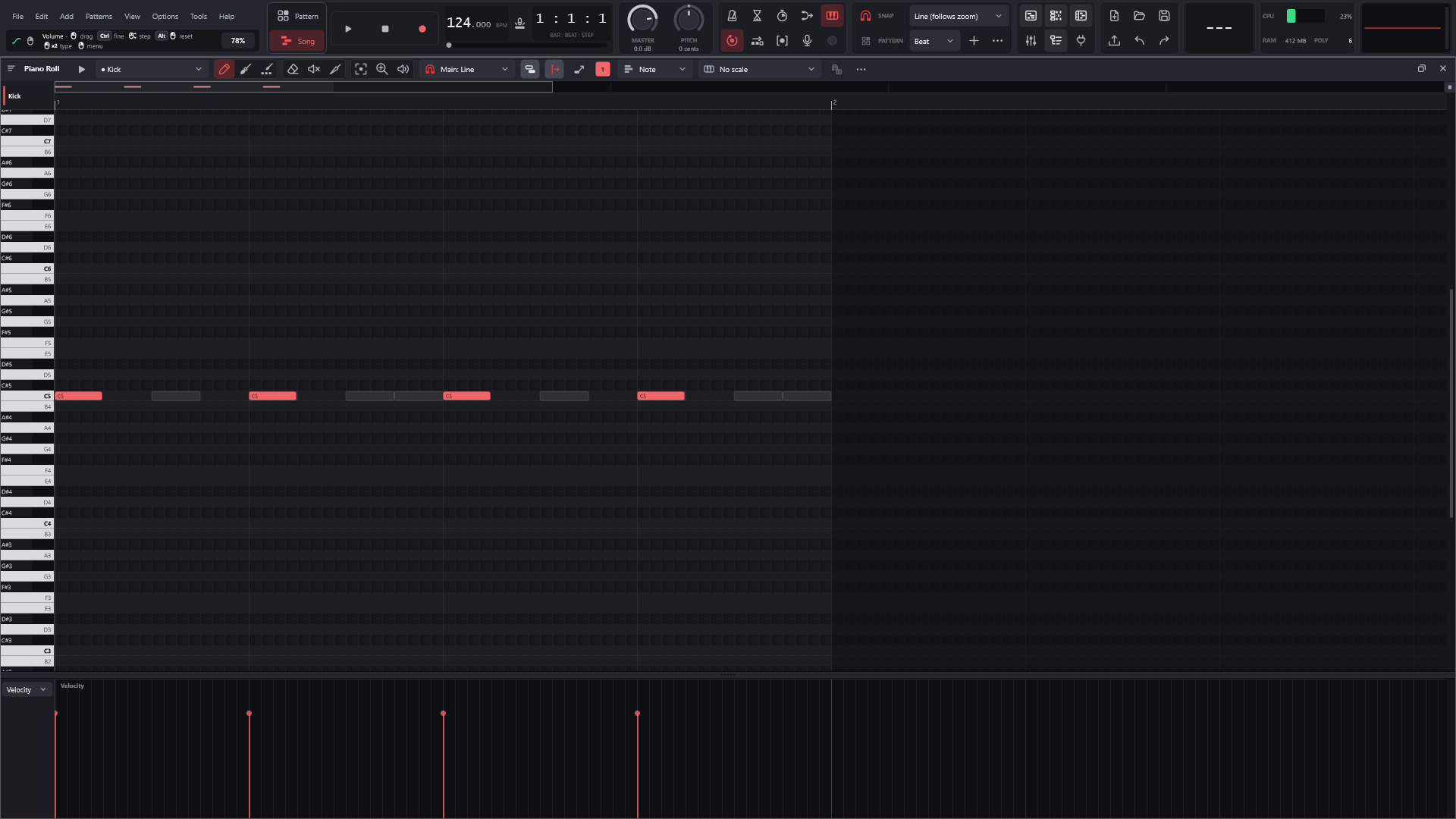
The Piano roll shows the notes of one channel in the current pattern, with a keyboard on the left and a lane for per-note values at the bottom. Press F7 to show or hide it, or choose Piano Roll in a channel's menu in the Channel rack.
The channel box in the toolbar picks which channel you edit. Channels that have notes in this pattern are marked. The wheel over the box steps through channels with notes, Ctrl+wheel through all of them.
Write some notes
- In the Channel rack, right-click a channel's name and choose
Piano Roll. - Press
Pfor the Pencil. - Click in the grid to add a note. Keep the button down and drag to position it.
- Drag the note's end to make it longer or shorter.
- Right-click a note to delete it.
- Press
Spaceto hear the pattern.
Tools

Each tool has a letter key. The letters work while the typing keyboard piano (Ctrl+T) is off.
| Tool | Key | What it does |
|---|---|---|
| Pencil | P | Click adds a note, drag positions it |
| Brush | B | Drag paints a run of notes. With Shift, one at a time |
| Drum brush | N | One hit per grid cell on the key under the mouse |
| Eraser | D | Click or drag deletes |
| Mute | T | Click or drag mutes or unmutes notes |
| Knife | C | Drag a line to cut across notes, click cuts at that point |
| Lasso | E | Drag draws a selection box. Shift adds |
| Zoom | Z | Click zooms in, drag a range to zoom to it, right-click zooms out |
| Listen | Y | Click or drag plays the notes under the cursor |
Working with notes
- Drag a note to move it.
Shift+drag makes a copy. - Drag a note's end to resize it. The start can be dragged too, with the end staying in place.
- Right-click deletes a note, in any tool.
- Double-click a note to open its properties.
Alt+wheel over a note changes its velocity.Ctrl+drag selects.Ctrl+click adds a note to the selection or removes it.- Hold
Altwhile dragging to ignore the snap.Backspaceturns snap off and on. - With several notes selected, the stretch handle stretches or squeezes them in time.
Keyboard and ruler
Click a key on the keyboard to hear it. Further right on the key is louder. Ctrl+click a key selects its notes. Middle-drag on the keyboard makes the keys taller or shorter. So does the vertical zoom wheel, the small square at the end of the time scroll bar: drag it up or down, or use the mouse wheel over it.
View › Keyboard style in the Piano roll's menu chooses between Flat keys and Piano keys (lines between the white keys), which draws a traditional keyboard.
Click the ruler to set the position. Ctrl+drag, right-drag or double-click-drag on the ruler selects the notes in a time range. Ctrl+wheel zooms and Shift+wheel scrolls.
Toolbar
| Setting | What it does |
|---|---|
| Snap | "Main" follows the snap in the main toolbar, or pick one for this window. |
| Chord | Clicking creates the chosen chord, with the clicked note as the root. Shift+N goes back to single notes. The same list is Chord stamp in the Piano roll's menu. |
| Scale | Highlights the notes of a scale. A separate button snaps new and moved notes, and incoming MIDI, to the chosen scale. Moved notes then move by scale steps, so a chord stays in the scale, and Up and Down move one scale step. |
Slide (S) | New notes are slide notes. The note that is sounding glides to them (808 glide). |
Ghost notes (Alt+V) | Shows the other channels' notes behind yours. |
| Note colour | New notes get this colour. There are 16. |
| Follow | The view scrolls with the playhead while the pattern plays. |
| Lane box | Chooses what the bottom lane edits: Velocity, Pan, Fine pitch, Release, Mod X, Mod Y, Chance or Velocity range. |
Chance and velocity range
Every note has a Chance and a Velocity range. Chance is how likely the note is to play each time it comes round. Velocity range lets its velocity vary between the note's velocity and that velocity plus the range. Pick Chance or Velocity range (LYNX) in the lane box to edit them. Tools › Chance (LYNX) in the Piano roll's menu groups the selected notes so that all of them or only one of them plays, and has Reset chance and velocity range.
Note tools
The Tools menu of the Piano roll opens FL Studio's note tools as dialogs. They work on the selected notes, or on all notes when none is selected. Some of them:
| Tool | Key | What it does |
|---|---|---|
| Limit | Alt+K | Moves notes by octaves into a key range, then clamps them. Under Key / scale restriction it keeps notes on a base key and one of FL Studio's chords or scales, with Snap set to Above, Under or Alternate. Wrap to top / bottom and Transpose set where notes outside the range go |
| Flip | Alt+Y | Flip horizontally mirrors the notes in time. With Preserve start times, on at first, the start times are mirrored and the notes keep their lengths. Flip vertically mirrors the keys around the middle of their range |
| Randomise | Alt+R | Random changes to velocity, pan, fine pitch, timing and length, and to Mod X, Mod Y and release |
| Scale levels | Alt+X | Scales a note level from the start to the end of the selection, with Offset, Center (the value it scales around) and Tension |
| LFO | Alt+O | Writes an LFO shape into a note level. Right-click a Period slider for a list from 1 step to 512 steps |
MIDI tools and scripts
Tools › MIDI Tools... in the Piano roll's menu opens a panel with Arpeggiate, Chop, Connect, Ornament, Quantize, Recombine, Span, Strum, Time Warp and Velocity Shaper.
The Scripts column of the Tools menu lists piano roll scripts: LYNX SHARE's own and .pyscript files, including the ones in FL Studio's script folders if FL Studio is installed. Open script folder... opens the folder for your own scripts, and Run last script again repeats the last one.
Keys
| Command | Key | What it does |
|---|---|---|
| Select all | Ctrl+A | Selects every note |
| Deselect | Ctrl+D or Esc | Clears the selection |
| Copy, cut, paste | Ctrl+C / Ctrl+X / Ctrl+V | Copies, cuts or pastes notes |
| Duplicate | Ctrl+B | Duplicates the selection |
| Delete | Del | Deletes the selection |
| Transpose | Up / Down | Moves the selection a semitone |
| Transpose octave | Ctrl+Up / Ctrl+Down | Moves the selection an octave |
| Nudge | Left / Right | Moves the selection one grid step |
| Quick quantize | Ctrl+Q | Quantizes starts and lengths |
| Quantize starts | Shift+Q | Quantizes the starts only |
| Chop | Ctrl+U | Chops the notes to the grid |
| Glue | Ctrl+G | Joins touching notes |
| Legato | Ctrl+L | Makes each note last until the next one |
| Mute, unmute | Alt+M / Shift+Alt+M | Mutes or unmutes the selection |
| Import MIDI | Ctrl+M | Imports a MIDI file into this channel |
| Export MIDI | Ctrl+Shift+M | Exports the pattern as a MIDI file |
| Zoom | PageUp / PageDown | Zooms in or out |
The note tools (Arpeggiate, Strum, Flip, Randomise, Quantize, Chop and others) open dialogs. Their keys are on the Shortcuts page.
Good to know
- The Piano roll shows one channel in one pattern. Change the current pattern and it shows that pattern's notes.
- The tool letters do nothing while the typing keyboard piano (
Ctrl+T) is on. - Right-click deletes with every tool, so there is no need to switch to the Eraser for one note.
Sis the Slide switch here. In the Playlist the same letter is the Slip tool.- Notes that are not plain steps (other keys, longer notes, slides) make the channel's row in the Channel rack show a miniature instead of step buttons.