 LYNX SHARE
Playlist
Arrange pattern, audio and automation clips on tracks to build the song.
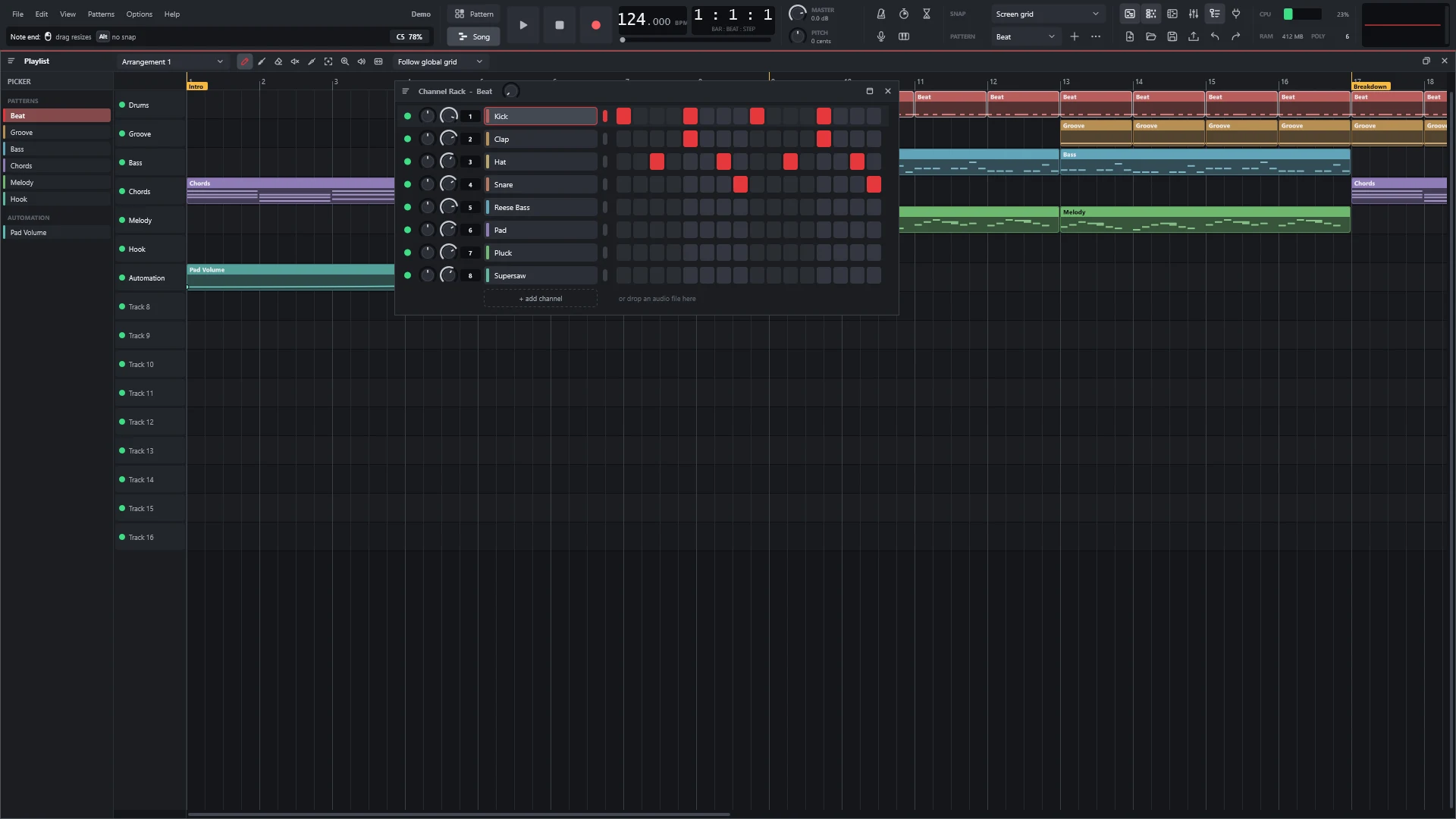
The Playlist is where patterns become a song. It holds three kinds of clips on its tracks: pattern clips, audio clips and automation clips. Press F5 to show or hide it, and Enter to maximize or restore it.
The transport has two modes. Pattern mode plays the current pattern in a loop. Song mode plays the Playlist. Press L to switch.
Place a pattern in the song
- Press
F5to show the Playlist. - In the Picker panel, click a pattern. The Picker lists the patterns, audio and automation of the project, and the one you click becomes the clip source.
- Press
Pfor the Pencil. - Click on a track to place the clip. Keep the button down and drag to position it.
- Press
Bfor the Brush and drag along a track to paint clips end to end. - Press
Lfor Song mode, thenSpaceto play.
Audio files can be dragged from the Browser onto the Playlist.
Tools

The letters work while the typing keyboard piano (Ctrl+T) is off.
| Tool | Key | What it does |
|---|---|---|
| Pencil | P | Click places the Picker's clip |
| Brush | B | Drag paints clips end to end |
| Eraser | D | Click or drag deletes |
| Mute | T | Click or drag mutes or unmutes clips |
| Knife | C | Drag a line to cut across clips, click cuts at that point |
| Lasso | E | Drag draws a selection box. Shift adds |
| Zoom | Z | Click zooms in, drag a range to zoom to it, right-click zooms out |
| Listen | Y | Click or drag plays from that point |
| Slip | S | Drag slides the clip's content inside the clip |
Working with clips
- Drag a clip to move it.
Shift+drag makes a copy. - Drag a clip's end to resize it. Dragging the start trims it while the content stays in place.
- Right-click deletes a clip.
Ctrl+drag selects. - Double-click a clip to open it.
- The button at a clip's top left opens the clip menu (make unique, rename and colour, chop, and for audio: pitch, fit to tempo, reverse).
- An audio clip's menu follows FL Studio's layout in two columns. The left column has the
Audio clipsection (Preview,Muted,Rename and color...,Change color...,Random color,Change icon...,Select source channel,Channel settings,Make unique,Select all similar clips,Delete,Properties...) and theRegionsection (Select region,Chop). The right column hasSample(Make unique as sample,Edit sample,Extract stems from sample,Detect tempo,Fit to tempo),Automation(Automate › PanningorVolume,Crossfade with) andFades(Reset fades). LYNX SHARE's own items, such asSplit here,Reverse,NormalizeandConvert to MIDI, come last, below a line. Automate › PanningorVolumemakes an automation clip as long as the audio clip, on its track, for the channel's Levels adjustment pan or volume.- Hold
Altwhile dragging to ignore the snap. - Audio clips have fade handles and a clip gain you drag up or down. Right-click a fade handle for its menu, with
Create crossfade. Right-click the gain handle forReset gainandNormalize. Shift+Mswitches Stretch: resizing an audio clip then stretches the audio instead of cutting it.Shift+LeftandShift+Rightmove the selected clips one snap step,Shift+UpandShift+Downone track.Alt+LeftandAlt+Rightmove them one screen pixel at the current zoom, without snap. With no clip selected, all clips move.Make unique as samplein an audio clip's menu gives the clip a new file that holds what it played, with its pitch, stretch and reverse already in the audio.- An audio clip with warp markers shows them as small flags on its top edge. Drag a flag sideways to move the marker.
Edit and Select menus
The Playlist's menu has an Edit and a Select submenu. Edit holds the clip commands: cut, copy and paste, Shift left, Shift right, Shift up, Shift down, Make unique, Make unique as sample, Insert space, Delete space, the merge commands and the fade options. Select has Select by selected source (Shift+C), Invert selection (Shift+I), Deselect (Ctrl+D), the muted and the overlapping clips, and Magic lasso. With Magic lasso on, move the mouse in a loop around clips, without pressing a button, to select them.
Tracks
In a track's header, click selects, Ctrl+click adds or removes, Shift+click selects a range and right-click opens the track menu. Shift+wheel moves the track up or down. The track's light mutes it (click) or solos it (Ctrl+click or right-click). Drag the divider between two tracks to resize one, or Shift+drag to resize all.
View in the Playlist's menu chooses what the track headers show: Show controls on audio tracks, Show levels on audio tracks and Show levels on instrument tracks.
Track mode in the track menu makes a track Unassigned, an Audio track or an Instrument track, as in FL Studio. Audio track lists New mixer track(s) first and then every mixer insert by number and name. The pick applies to all selected tracks. Instrument track has Use existing channel, More plugins... and the Channel rack's list of instruments.
The + at the top left of the track headers opens the same choices for a new track: Add audio track, More plugins... and the instruments. A right click on + adds an audio track at once.
Pattern Blocks
With Pattern blocks (current project) on in the Playlist's menu, a section under the tracks has one row per pattern. There, the Pencil places one block and drags it along its row, the Brush paints blocks and the Eraser deletes them. Right-click erases with any tool.
Ruler, loop and markers
- Click the ruler to set the song position.
- Right-drag,
Ctrl+drag or double-click-drag on the ruler makes a time selection, which is also the loop.Shift+drag moves it. Ctrl+Insinserts the time selection's length across all tracks,Ctrl+Delremoves it.Alt+Tadds a marker. Click a marker to jump to it.Ctrl+wheel zooms,Alt+wheel changes the track height.
Automation
Right-click a knob or fader and choose Create automation clip. The clip appears on the Playlist. With the Pencil, drag its points, and click on the curve to add one. Automation lanes under tracks are optional and off by default. See Automation.
Right-click a point for its menu. Its Mode list has FL Studio's 13 curve modes for the segment that ends at that point: Smooth, Hold, three single curves, three double curves, Half sine, Stairs, Smooth stairs, Pulse and Wave. A new point takes the mode used last. Modes are read from and written to .flp files.
Arrangements
The arrangement box in the toolbar switches between arrangements. A project can have several.
Keys
| Command | Key | What it does |
|---|---|---|
| Select all | Ctrl+A | Selects every clip |
| Copy, cut, paste | Ctrl+C / Ctrl+X / Ctrl+V | Copies, cuts or pastes clips |
| Duplicate | Ctrl+B | Duplicates the selection |
| Delete | Del | Deletes the selected clips |
| Ripple delete | Shift+Del | Deletes the selected clips and closes the gaps |
| Ripple editing | Shift+S | Turns ripple editing on or off |
| Mute, unmute | Alt+M / Shift+Alt+M | Mutes or unmutes the selected clips |
| Shift clips | Shift+Left / Shift+Right | Moves the selected clips one snap step |
| Shift to another track | Shift+Up / Shift+Down | Moves the selected clips one track |
| Nudge clips | Alt+Left / Alt+Right | Moves the selected clips one screen pixel, without snap |
| Make unique | Ctrl+Shift+V | Makes the selected clips unique |
| Merge | Ctrl+G | Merges pattern clips |
| Stretch | Shift+M | Switches Stretch for resizing audio clips |
| Insert time | Ctrl+Ins | Inserts the time selection's length across all tracks |
| Delete time | Ctrl+Del | Removes the time selection across all tracks |
| Add marker | Alt+T | Adds a marker |
| Zoom | PageUp / PageDown | Zooms in or out |
| Zoom to fit | Shift+4 | Zooms to show everything |
| Maximize | Enter | Maximizes or restores the Playlist |
Good to know
- The Playlist is heard only in Song mode. In Pattern mode,
Spaceplays the current pattern, whatever is on the tracks. View › Layout style › Clip-launch workflowadds a grid of clips and scenes next to the Playlist. It is optional. See Layouts.- With several overlapping automation clips on one control, the choice of which one plays can differ from FL Studio's (0.1.25 release notes).
- As in FL Studio, a pattern plays from one clip at a time. When a later clip of the same pattern starts, on any track, the earlier clip starts no more notes from there. Clips of different patterns play together. This holds in new projects and FL Studio projects. A .lynx project saved before 0.1.27 keeps playing every clip in full.
- A tempo moved by a linked MIDI controller does not resize audio clips.
- On Linux, video needs FFmpeg.