 LYNX SHARE
Settings
Every page of the Settings window and what each setting does.
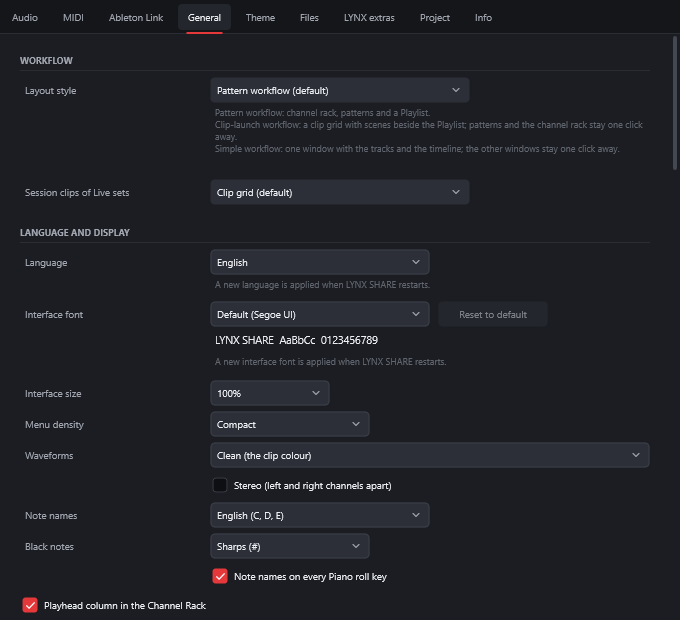
The Settings window has eight pages: Audio, MIDI, General, Theme, Files, LYNX extras, Project and Info. The first six belong to the program. Project and Info belong to the open project and are saved with it. Each page has its own entry at the top of the Options menu.
Change a setting
- Open the
Optionsmenu and choose a page, for exampleGeneral settings.... - Click another tab along the top to move to another page.
- Change the setting. It applies at once, except the language and the interface font, which apply when LYNX SHARE restarts.
F10 opens the MIDI page and F11 the Info page.
Audio
Options › Audio settings.... Driver, devices, sample rate, buffer size and recording. Audio setup describes this page. Under Recording, File format now also offers WAV 16-bit (the device's sample rate).
MIDI
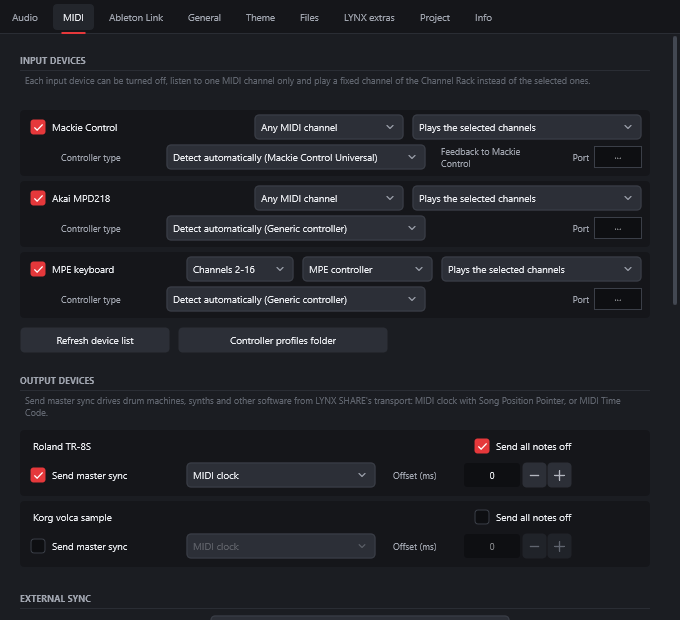
Options › MIDI settings...
| Setting | What it does |
|---|---|
| Input devices | Each device can be turned off, listen to one MIDI channel only, and play a fixed channel of the Channel rack instead of the selected ones |
Controller type | For each input device: Detect automatically, Generic controller or a controller profile, such as Mackie Control. The line beside it names the port that gets the lights and display |
MPE controller | At the end of a device's MIDI channel list. Each note comes with its own bend, timbre and pressure. A second box sets the member channels |
Refresh device list | Looks for devices again, and reads your controller profiles again |
Controller profiles folder | Opens the folder for your own controller profiles (*.lynxctl) |
Send master sync | Sends MIDI clock with Song Position Pointer, or MIDI Time Code, to an output device. Offset (ms) sends it later or earlier |
Send all notes off | Sends all notes off to the device on init and after an export |
External clock sync | LYNX SHARE follows the MIDI clock of the chosen input: tempo, start, continue, stop and position |
Velocity | For notes from MIDI devices: as played, soft, hard or fixed |
Performance mode channel | Notes on this channel launch Playlist clips in Performance mode |
Song marker jump | Notes on this channel move the song to a marker instead of playing |
Pickup (takeover mode) | A controller moves a parameter only after reaching its current value |
Foot pedal controls note off | On by default: the sustain and sostenuto pedals hold notes. Off, the pedal goes to the plugins |
Use a game controller | A game controller runs the transport and can be linked like a MIDI controller. Off by default |
| Links | The controller links of this project, then the global ones, with Remove link and Remove all |
General
Options › General settings...
| Setting | What it does |
|---|---|
Layout style | Pattern workflow (default), Clip-launch workflow or Simple workflow |
Default template, Startup project | The template that opens with File › New, and what opens at start-up: Empty project, Default template or Last used project. File › Save as template... adds your own |
Session clips of Live sets | Where the session clips of an imported Live set go: the clip grid, or the Playlist after the arrangement |
Language, Interface font | Applied at the next start |
Interface size, Menu density | Scale of the whole interface, and compact or comfortable menus |
Waveforms | Clean (the clip colour) or spectral colours, optionally with stereo channels apart |
Note names, Black notes | English, Germanic or solfège names, with sharps or flats |
Plugin style | The look of the built-in plugin windows: automatic, or one style for every plugin |
Animations, Animation rate | Interface animations, and how often the playhead and meters move |
Draw with the GPU (Direct2D) | Turn off if the graphics driver crashes or the screen flickers |
| Startup | Splash screen, startup sound, and looking for new plugins in the background at every start |
| Editing | Typing keyboard to piano, keeping channel editors open, remembering the seek time, looping stretched pattern clips |
Detach all new plugins | On: the window of a plugin you add opens detached, on top of the panels. Off (default): it opens docked in the main window |
Monophonic painting in piano roll | On: the Paint tool replaces the notes under each new note, and Shift paints over them. Off: the other way round |
Auto select linked modules | Focusing a plugin window selects its mixer track. On by default |
Disable typing keyboard priority by default | For plugins you add from then on. Off by default |
Maximum undo levels | 25 to 1000 |
Manage messages | Under Hints and warnings. Ticked messages are shown. Untick one to skip its question |
| Backup | How often a backup copy is saved, how many are kept per project, and Open backup folder |
Run plugins in a separate process | A crashing plugin does not take LYNX SHARE down. Off by default |
Substitute missing plugins with LYNX SHARE equivalents | On by default. When a project uses a third-party plugin that is not installed, LYNX SHARE's stand-in loads with matching settings where it has one. The project keeps the original plugin and uses it again once it is installed |
Limit the number of open plugin editors | At most 25 plugin editor windows stay open. On by default |
Crash reports | Ask after a crash or freeze (default), always send or never send |
Check for updates automatically | The start-up update check, with Check now |
Theme
Options › Theme (colors, background)...
| Setting | What it does |
|---|---|
| Theme box | Picks a preset. Import... and Export... read and write .lynxtheme files, Save preset... keeps the current theme, Default resets it |
Accent color, Background, Workspace | The three colours of a theme. The workspace colour can follow the background automatically |
| Workspace image | A PNG, JPEG or GIF behind the windows, with Image fit, Image opacity and Dim |
| Startup sound | Your own sound of 30 seconds or less, or LYNX SHARE's own |
Files
Options › File settings (search folders)...
| Setting | What it does |
|---|---|
| Search folders for missing samples | The Missing files window looks in these folders and their sub-folders by itself |
| Browser folders | Shown in the Browser's folder list, and also searched for missing samples |
| Plugin folders | Scanned for plugins by Options › Scan for plugins |
LYNX extras
Options › LYNX extras.... LYNX SHARE's own additions in one place. All are off by default. Each switch is the same setting as in the menu or page its line names.
| Setting | What it does |
|---|---|
Loudness meter beside the Master (LYNX) | Short-term and integrated loudness (LUFS) and the true peak of the Master, with a Reset button |
Show only used inserts | Hides the Mixer inserts nothing uses |
Keep links to deleted inserts, greyed (LYNX) | Deleting an insert keeps the links that went into it, so they can be connected again |
Mixer groups follow the Playlist (LYNX) | The Mixer's groups mirror the Playlist's track groups |
Automation lanes | Automation can sit in lanes under a Playlist track |
Ruler: song bars (LYNX) | The Piano roll's ruler shows the bar numbers of the place in the song where the pattern plays |
Show a control's value next to the mouse when hovering over it (LYNX) | The value shows beside the cursor, not only in the hint bar |
After loop recording, only the last pass plays | The earlier passes stay under it, muted |
W shows or hides the selected device's window | A key for the Device view |
Selecting a device selects its insert in the Mixer | The Mixer follows the device picked in the Device view |
Use a game controller | The same switch as on the MIDI page |
Project

Options › Project settings (tempo, time signature)...
| Setting | What it does |
|---|---|
Time settings | Time division (beats per bar, steps per beat) or a traditional time signature (numerator and denominator) |
Tempo, Beats per bar | The project's tempo and the beats in a bar |
Swing, Master pitch | The global swing amount and the master pitch in cents |
Automatic crossfades | Overlapping audio clips on a track crossfade over the overlap |
Comp crossfade | The crossfade length used when comping takes, in milliseconds |
Play truncated notes in clips | A note that starts before a pattern clip plays from the clip's start |
Fast declick for cut groups | Faster ramping when cut groups cut notes |
Panning law | Circular (centre at 0 dB, +3 dB on the side panned to) or Triangular (the louder side keeps its level). For Mixer inserts and Sampler channels |
Info
Options › Project info.... Title, author, genre, web link and comments of the project, and Show this page when the project is opened. The foot shows when the project was created and the working time.
Good to know
- The timebase is fixed at 960 ticks per quarter note. Projects from FL Studio are converted to it.
- Time signature changes along the song are not on the Project page. Add a time signature marker on the Playlist ruler.
Run plugins in a separate processapplies to plugins opened from then on. Reopen the project to move the others.- The update settings are absent in the Microsoft Store version, because the Store updates it.
- Shortcuts are in
Options › Manage shortcuts..., not on a Settings page. - Some switches are in menus, not in this window.
Low latency while recordingis in the recording options menu beside the record button and in the Mixer'sDisk recordingmenu.Keyboard styleis in the Piano roll's View menu. - The plugin database is a folder,
Plugin databasein theLYNXfolder of your documents. You can arrange it in the file manager.