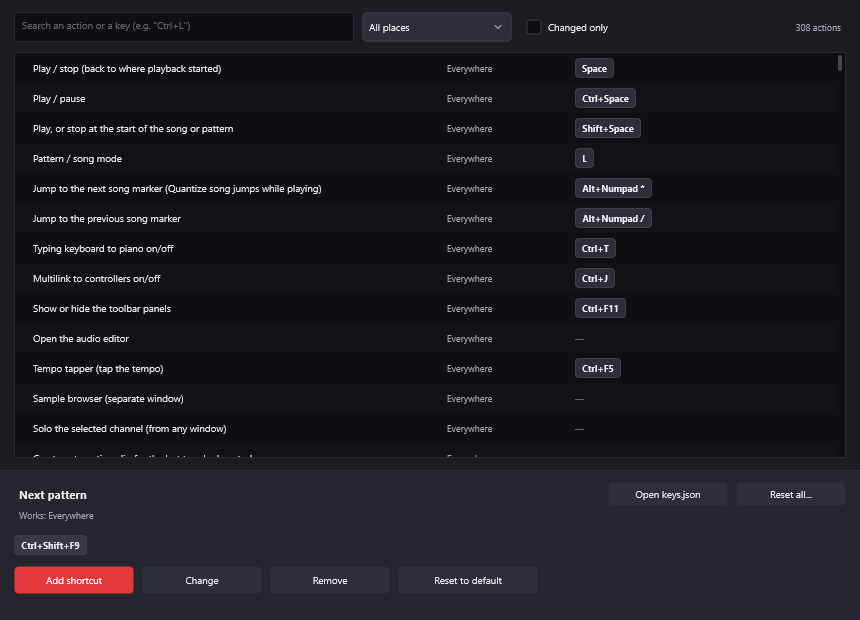
The default keyboard shortcuts of LYNX SHARE 0.1.26, by window.
These are the default keys in 0.1.26 alpha. Help › Shortcuts (F1) shows the shortcut sheet inside the app. Options › Manage shortcuts... opens the editor in the picture, where you change them.
On macOS the app shows the keys with Mac names: Ctrl is shown as ⌘ and Alt as ⌥.
Change a shortcut
Choose Options › Manage shortcuts....
Type an action or a key, such as Ctrl+L, in the search box. The list beside it limits the search to one place, and Changed only shows the ones you changed.
Click the action.
Click Change to replace its keys, or Add shortcut to give it a second one, then press the new keys. Esc cancels.
If the keys are already used in the same place, a message names the other action and lets you move them.
Remove clears the keys of the action. Reset to default restores one action and Reset all... restores every one. Your changes are saved in keys.json in the settings folder (%APPDATA%\LYNX on Windows, ~/Library/Application Support/LYNX on macOS, ~/.config/LYNX on Linux). Open keys.json opens that file.
Transport and recording
Key
What it does
Space
Play, or stop and go back to where playback started
Ctrl+Space
Play or pause
Shift+Space
Play, or stop at the start of the song or pattern
L
Switch between Pattern mode and Song mode
R
Recording on or off
Shift+R
Record audio now: arms the selected insert and records
Ctrl+M
Metronome on or off
Ctrl+P
Count-in before recording on or off
Ctrl+I
Recording waits for the first note, on or off
Ctrl+B
Blend recorded notes on or off
Ctrl+E
Step edit on or off
Ctrl+H
Stop sound (all notes off)
Ctrl+T
Typing keyboard to piano on or off
Alt+Numpad * / Alt+Numpad /
Jump to the next or previous song marker
Some of these keys do something else inside an editor that has focus. In the Piano roll, Ctrl+M imports a MIDI file and Ctrl+B duplicates. In the Playlist, Ctrl+P is Performance mode.
Files and editing
Key
What it does
Ctrl+N
New project
Ctrl+O
Open project
Ctrl+S
Save
Ctrl+Shift+S
Save as
Ctrl+Alt+S
Save new version
Ctrl+R
Export audio
Ctrl+Shift+R
Export an MP3 file
Ctrl+Shift+M
Export a MIDI file
Ctrl+Z
Undo. Pressed again, it redoes that step
Ctrl+Alt+Z
Undo backwards, step after step
Ctrl+Y or Ctrl+Shift+Z
Redo
Ctrl+Alt+H
Undo history
Ctrl+F
Search the Browser
Windows
Key
What it does
F5
Playlist
F6
Channel rack
F7
Piano roll
F9
Mixer
Alt+F8
Browser
F8
Plugin picker
Shift+F8
Plugin database (in the Browser)
Enter
Maximize or restore the Playlist
F10
MIDI settings
F11
Project info
F12
Close all windows (plugins, channel settings, tools)
Nudge the selected clips left, right by a fine step, without snap. Shift+Alt does the same
Ctrl+D
Deselect clips and time
Shift+I
Invert the selection
Shift+C
Select the clips of the selected source
Shift+S
Ripple editing on or off
Backspace
Snap off or on
Alt+M / Shift+Alt+M
Mute, unmute the selected clips
Shift+M
Stretch audio when resizing audio clips, on or off
Ctrl+Shift+V
Make the selected clips unique
Ctrl+G
Merge pattern clips
Ctrl+Shift+G
Merge similar pattern clips
Ctrl+Alt+G
Merge automation clips
Ctrl+Shift+B
Clone the selected Playlist tracks
Ctrl+Q
Quantize the clips' starts
7 / 8
Pitch the selected audio clips one semitone down, up
9
Reverse the selected audio clips
Ctrl+Ins / Ctrl+Del
Insert, remove the time selection's length on all tracks
Ctrl+Alt+Ins
Slice the clips and insert space
Ctrl+Alt+Home
Resizing clips from the left, on or off
Ctrl+Left / Ctrl+Right
Select the previous, next time
Ctrl+Enter
Select time around the selection
Alt+T
Add a time marker
Ctrl+T
Add a marker automatically
Shift+Alt+T
Add a time signature change
Shift+T
Place loop marker
Ctrl+Alt+C
Consolidate the Playlist selection
Ctrl+P
Performance mode on or off
PageUp / PageDown
Zoom in, out
Shift+1 / Shift+2 / Shift+3
Zoom to 1, 4, 16 bars
Shift+4
Zoom to show everything
Shift+5
Zoom to the selection
Shift+0
Centre the view on the playhead
Mixer
Key
What it does
Alt+Left / Alt+Right
Move the selected inserts left, right
F2
Rename and colour the selected insert
S
Solo the selected inserts
Alt+S
Solo the selected inserts with the inserts that feed them
Ctrl+L
Link the selected channels to the selected insert
Ctrl+Shift+L
Link the selected channels to inserts starting from the selected one
Alt+L
Select the channels linked to the selected insert
Del
Delete the selected inserts. LYNX SHARE asks first
Ctrl+E
Open the audio editor
Shift+E
Open the audio editor and record
Alt+R
Render the armed inserts to wave files
Shift+Alt+R
Render the selected inserts to wave files
Browser
Key
What it does
Up / Down
Previous, next file (with preview)
Shift+Up / Shift+Down
Previous, next file into the selected channel
Enter
Load the file into the selected channel
Left
Close the folder, or go to the parent folder
Right
Open the folder
F2
Rename the selected plugin (Plugin database)
Good to know
While the typing keyboard piano is on, its keys play notes and most single-letter shortcuts are paused (L still works). Turn it off with Ctrl+T.
A shortcut works either everywhere or in one window. One that belongs to a window wins over the same keys that work everywhere, while that window has focus.
Some actions have no default key, for example the Quick-add palette. Give them one in the editor.
In the Playlist, the keys that move clips move every clip when none is selected. The fine step of Alt+Left and Alt+Right is one pixel at the current zoom.
LYNX SHARE's shortcuts also work while a plugin window has focus, for example Space. Plain letters and digits go to the plugin first, and Esc closes its window.
 LYNX SHARE