 LYNX SHARE
A tour of the window
The toolbar, the hint bar, the five windows and how they move.
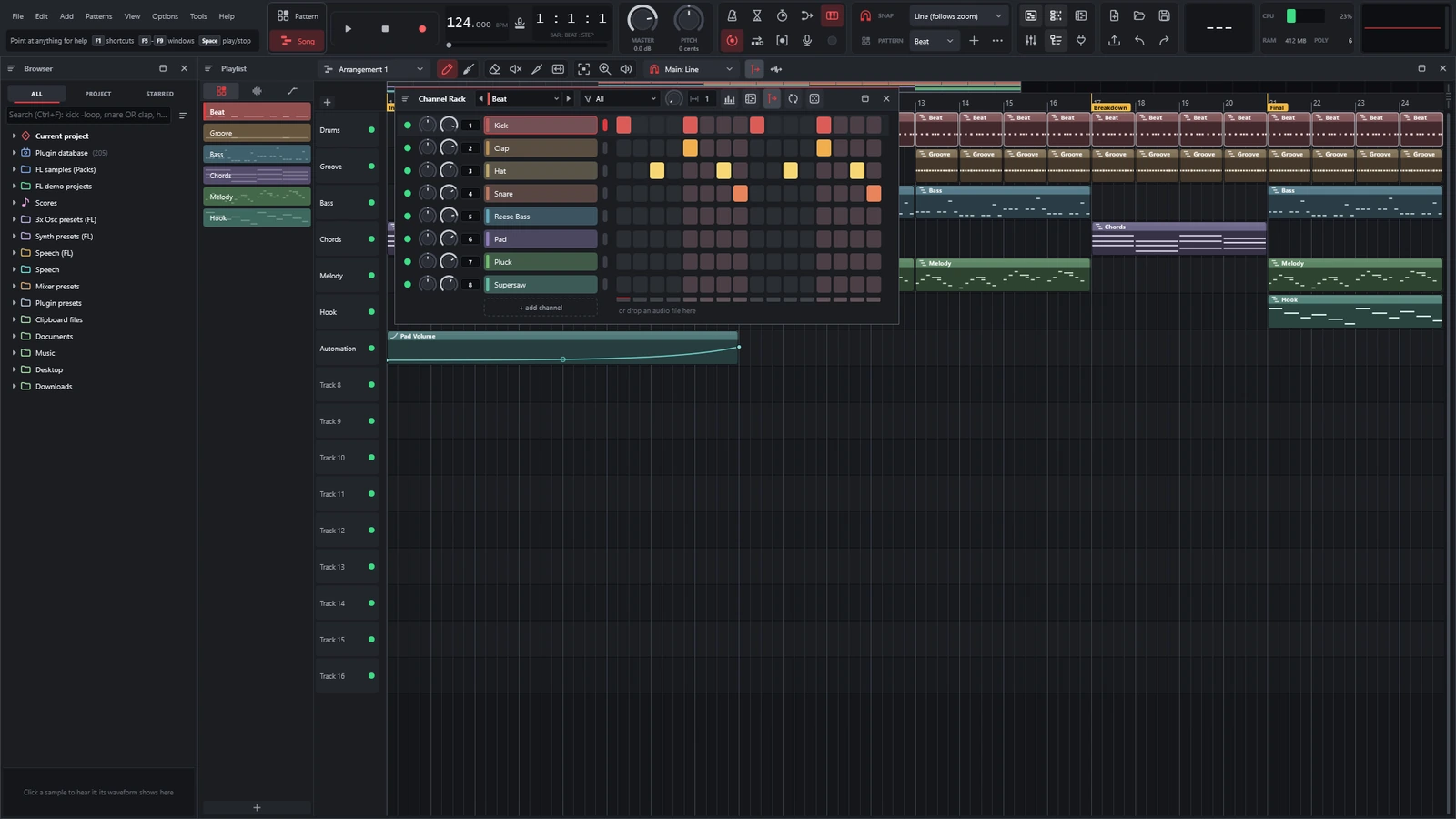
LYNX SHARE has one main window. A toolbar runs along the top. Under it is a desktop that holds five windows: the Browser, the Playlist, the Channel rack, the Piano roll and the Mixer. On a fresh start the Browser is on the left, the Playlist fills the rest and the Channel rack floats over it. The Piano roll and the Mixer are hidden until you call them.
Find your way around
- Point the mouse at any control. The hint bar under the menus says what it does and which mouse buttons and keys it takes.
- Press
F6to hide the Channel rack, andF6again to show it. - Press
F9to show the Mixer, thenF7for the Piano roll. - Drag a window by its title strip to move it. Double-click the title to maximize it, and again to restore it.
- Choose
View › Reset layoutto put everything back.
The toolbar

From left to right, with the default layout:
| Group | What it holds |
|---|---|
| Menu and hint bar | The menus File, Edit, Add, Patterns, View, Options, Tools and Help, with the hint bar under them. Always first |
| Transport | The Pattern and Song mode buttons, Play, Stop and Record, the tempo in BPM and the position as bar, beat and step |
| Master volume and pitch | The MASTER volume knob and the PITCH knob, in cents |
| Recording options | Metronome, count-in, loop record, step edit and the other recording switches |
| Snap and pattern | The main snap (Line (follows zoom) by default), the current pattern, a button for a new pattern and the pattern menu |
| Window shortcuts | One button per window, and the plugin picker |
| File and undo | New, Open, Save, Export, Undo and Redo |
| Chord detection | Names the chord being played on a MIDI device or the typing keyboard |
| CPU, memory and polyphony | Audio CPU load, memory in use and the number of voices |
| Output monitor | An oscilloscope of the output. A click steps through its other modes |
A group named Multilink to controllers exists too and is hidden by default.
Options › Toolbar changes the toolbar: Edit toolbar (drag panels to move, add or remove them), Separators, Hide the toolbar panels, Presets, a switch for each group, and Icon size (small, medium or large).
Transport
| Control | Key | What it does |
|---|---|---|
| Pattern mode | L | Plays the current pattern in a loop. Right-click the button to show the Channel rack |
| Song mode | L | Plays the Playlist arrangement. Right-click the button to show the Playlist |
| Play | Space | Plays. Pressed again, it stops and goes back to where it started. Ctrl+Space pauses |
| Stop | Stops and returns to the start. Double-click also sends all notes off | |
| Record | R | Recording on or off. See Recording |
The hint bar
At rest the hint bar reads Point at anything for help, with F1 for the shortcut sheet, F5 to F9 for the windows and Space for play and stop. Over a control it names the control and lists what dragging, Ctrl, Alt and right-click do there. Long jobs such as the background plugin scan report their progress in it.
The five windows
| Window | Key | What it is for |
|---|---|---|
| Playlist | F5 | Arranging pattern, audio and automation clips into a song |
| Channel rack | F6 | One row per instrument, with the steps of the current pattern |
| Piano roll | F7 | The notes of one channel in the current pattern |
| Mixer | F9 | Inserts with faders, effects and routing |
| Browser | Alt+F8 | Samples, presets, the project's contents and the plugin database |
Each key shows the window and gives it focus, or hides it when it already has focus. F8 alone opens the plugin picker, which is not one of the five. The toolbar's window buttons do the same as the keys. Right-clicking one shows that window maximized. Enter maximizes or restores the Playlist.
How windows move and dock
Every window has a title strip. On its left is a menu button with the window's own options, then Detached (own window), Maximized and Close. On its right are the maximize and close buttons.
- Drag the title strip to move a window. It snaps to the other windows and to the edges. Hold
Altto move without snapping. - Drag an edge to resize.
Detached (own window)turns the window into a separate system window, for a second monitor. A detached window has aDockbutton that puts it back.View › Detached panels (own window)lists all five.View › Bring back off-screen panelsrecovers a window that ended up outside the desktop.View › Save layout as...stores the arrangement under a name, andView › Load layoutbrings one back.
The Browser is the background of the desktop: it stays docked at the side and the other windows always stay above it.
Good to know
- Until you move, resize or detach something, the windows take their default places again whenever the main window changes size. After that, your arrangement is remembered and scales with the window.
F12closes the plugin, channel settings and tool windows. It does not close the five main windows.- While the typing keyboard piano is on (
Ctrl+T), letter keys play notes and most single-letter shortcuts are paused. View › Layout styleswitches between the Pattern workflow (the default) and the Clip-launch workflow, which adds a clip grid beside the Playlist.